
Help
Google Calendar
Link your calendar so a meeting booked against a lead appears there, and a clash is visible before you promise a time.
Where to find it:Business SettingsIntegrations
What the connection does
Connect one Google account to this business, and a meeting you schedule with a lead can be written straight to its calendar. Google then emails the invitation to everyone on the meeting.
- A meeting goes to the calendar only when Schedule via Google Calendar is switched on for it.
- A meeting of the type Video Call is given a Google Meet link.
- Editing the meeting in KyDec updates the calendar event. Cancelling it removes the event, and Google tells the people invited.
- It works one way. Events you create in Google Calendar do not appear in KyDec.
- KyDec does not check the calendar for clashes or offer free slots. Look at your calendar before you promise a time.
Find the calendar connection
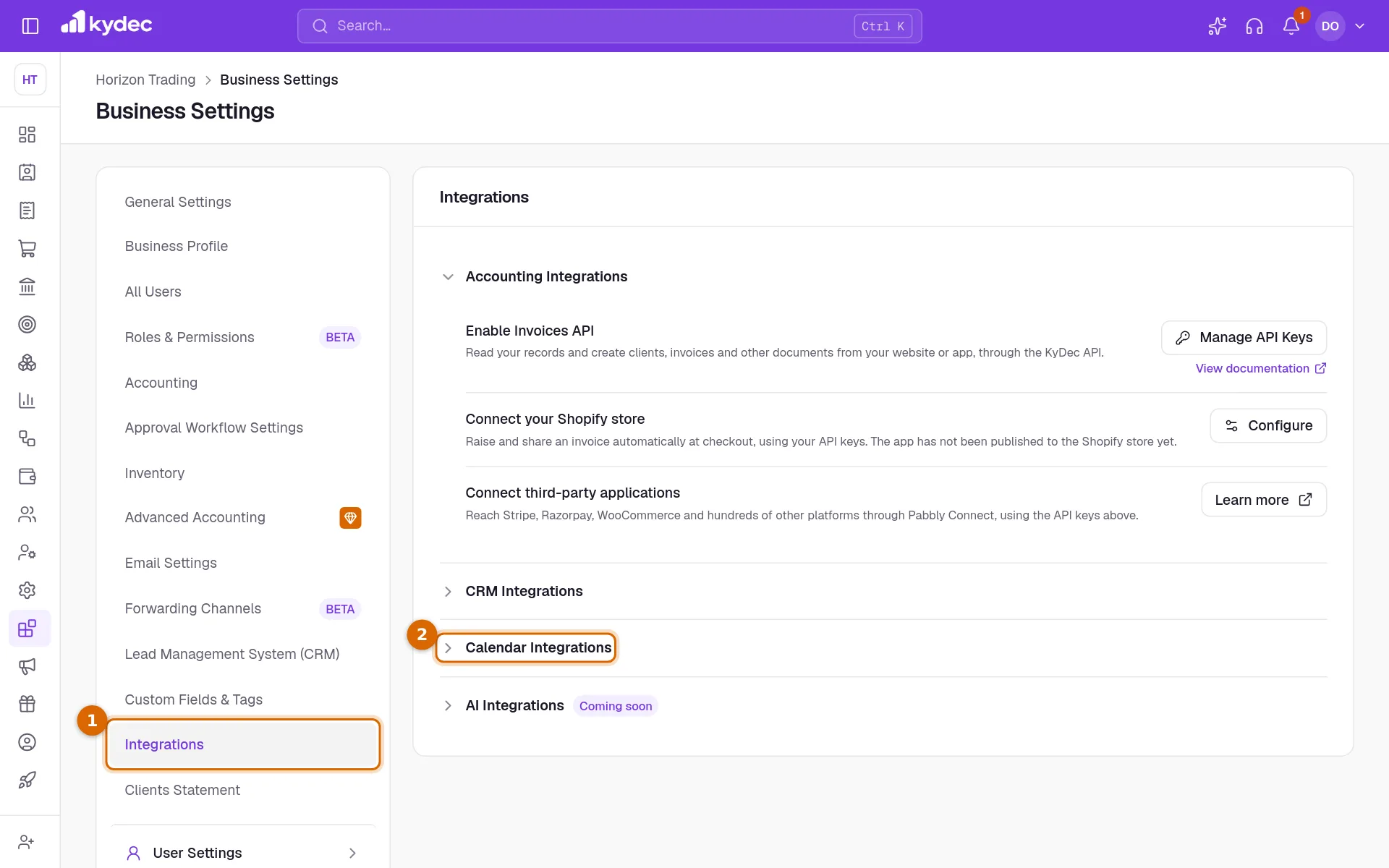
- 1Open Business Settings and choose the Integrations tab. Integrations in the sidebar opens the same page.
- 2Click Calendar Integrations to open the section.
Connect your Google account
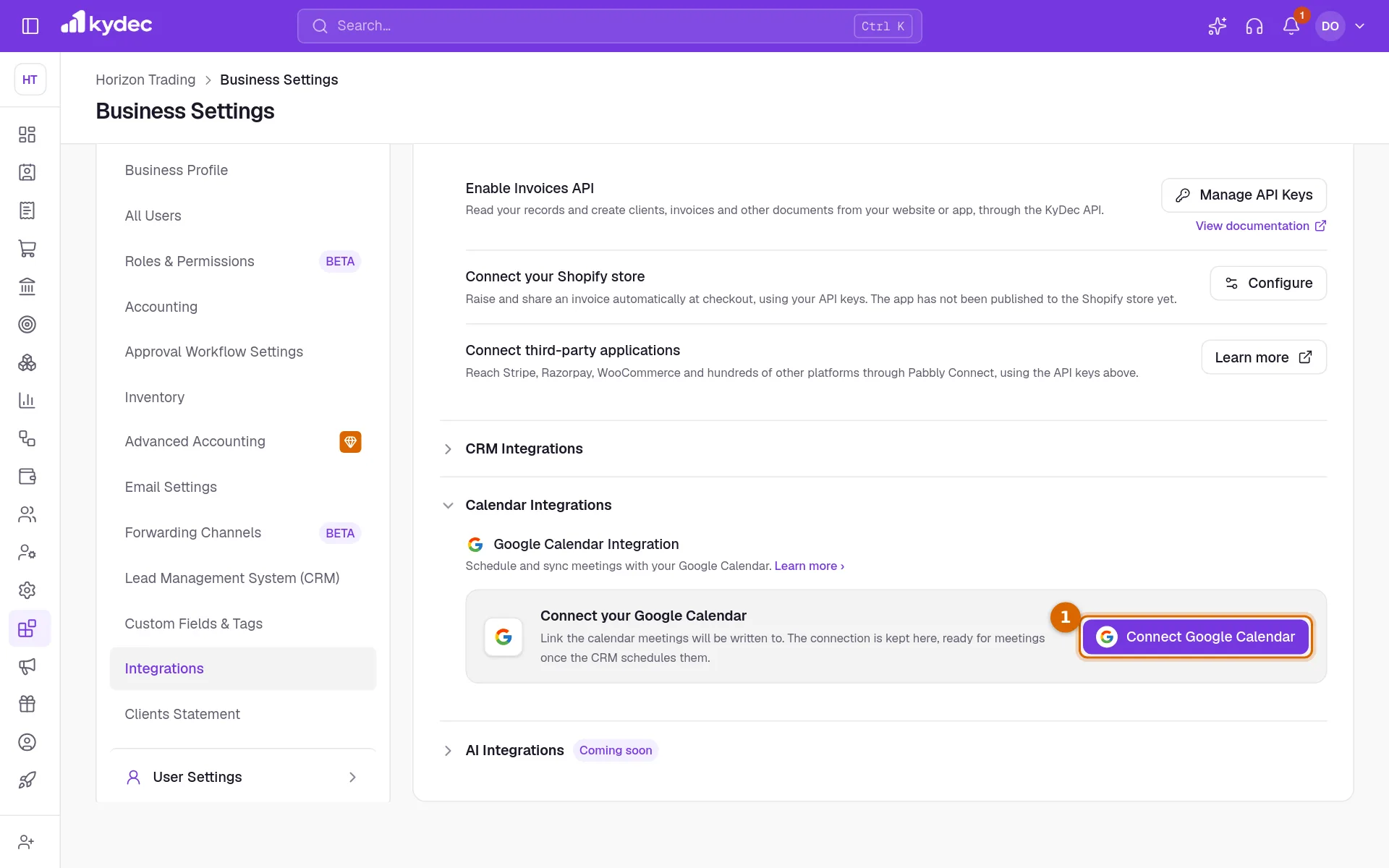
- 1Click Connect Google Calendar. You are taken to Google.
- 2Choose the Google account and allow KyDec to see your calendars and add events to them.
- 3Google sends you back to Integrations, where the card now reads Connected as with the account.
Good to know. Finish on Google within ten minutes, in the same browser tab you started in. If it takes longer, or you cancel on Google, nothing is connected: click Connect Google Calendar again.
Choose which calendar to use
- The list beside Sync shows the calendars on that account that you can add events to. Your main one is marked (primary) and is chosen to begin with.
- Pick another calendar from the list and meetings go there from then on.
- Sync reads the calendars again. Use it after you add a calendar in Google.
- Disconnect removes the connection. Events already on the calendar stay there.
Good to know. A business has one calendar connection, shared by the whole team. You need a role that includes Edit business profile to change it.
Put a meeting on the calendar
- 1Open a lead from All Leads under Sales CRM & Leads. In its Meetings card click Schedule a Meeting, or Schedule Meeting if the lead already has one.
- 2Give the meeting its title, type, start time and duration.
- 3Under 4. Schedule, switch on Schedule via Google Calendar. A line under it names the account and the calendar the invitations go out from.
- 4Under 7. External Contacts, enter an email for each person outside your team. + Add Team Members invites colleagues too.
- 5Click Create Meeting.
Good to know. If Google cannot take the meeting, it is still saved in KyDec. You are told it was not added to Google Calendar, with the reason, and the meeting shows Not Synced. Open Edit Meeting, leave the switch on and save to try again.
Common questions
- Will KyDec warn me if I am already busy at that time?
- No. KyDec writes the meeting to the calendar but does not read what is already on it. Check your calendar before you agree a time.
- Can each person on my team connect their own calendar?
- No. A business connects one Google account, and every synced meeting goes to the calendar chosen there. Team members you add to a meeting receive the invitation by email.
- I switched on Schedule via Google Calendar and it says No calendar connected.
- The business has no calendar connected yet. Continue with Google under that message opens Integrations in a new tab. Connect there, then come back to the meeting.
- What happens to my events if I disconnect?
- They stay on the calendar. Changes you make to those meetings in KyDec afterwards no longer reach Google.
Related guides
Streamline Lead Management
Automate lead capture with Forms & third-party integrations, manage leads across multiple pipelines, communicate over email/WhatsApp, track deal progress, track team performance, and more.
Sales Pipelines
Create different sales pipelines for different products/services.
Forms
Lead capture, contact us, survey and all types of forms. Add them to your website, ads, or social media profile. Automatically capture all the data directly on KyDec.
Facebook and Instagram leads
Connect your Meta pages so every lead from a form or message arrives in your CRM, with its source recorded, instead of being copied over by hand.