
Help
Income Tax
Work out your business’s own income tax: set up the taxpayer profile once, then follow what is due from the dashboard.
Where to find it:Income TaxDashboard
What Income Tax is for
Income Tax works out the income tax of your own business for a year and gets its return ready. It is the tax the business pays on its profit. It is not your clients' tax, and it is not GST.
It takes what it can from your books in KyDec, asks you for the rest, and shows the tax for the year, what is already paid and what is left. Then it makes the return file for you to upload on the income tax portal.
- Taxpayer Profile holds the PAN the return is filed on. The PAN is the ten-character number the income tax department gave the business or its owner. Every other page waits for it.
- Books & Tax Computation, Deductions, Tax Credits and Tax Payments work out the tax of a year and keep the challans you record. A challan is the receipt for a tax payment.
- AIS / TIS, Form 26AS and Reconciliation bring in the statements you download from the portal and set them beside your books.
- Under ITR (income tax return), Prepare ITR, Validate ITR and File ITR make the return file and record that you filed it. Filed Returns lists every return. Acknowledgements keeps the acknowledgement of each filed return and how it was verified.
- Dashboard shows where the year stands. Audit Log shows who did what.
Good to know. KyDec is not connected to the income tax portal. It does not file the return, pay tax or fetch your statements. You download and upload the files yourself, and record here what you did.
Who sees it
- The Income Tax group is in the sidebar only when the country of the business is India. Opened for a business in another country, a page says Income Tax is not available for this business and offers Business Profile, where the country is set.
- Your role needs View income tax to open the pages. To save, import, record or mark anything it also needs Prepare computations and record tax payments.
- It is not limited to a paid plan, and Advanced Accounting does not have to be on. With Advanced Accounting off, you type the net profit of the year yourself and nothing is posted to your books.
- Five kinds of taxpayer are covered: an individual (a proprietor), a Hindu Undivided Family (HUF), a partnership firm, a limited liability partnership (LLP) and a company.
- A PAN of a trust, an association of persons, a body of individuals, a local authority, an artificial juridical person or a government body is not accepted for now.
Start with the Taxpayer Profile
Income Tax works on one PAN. Until that PAN is saved, the other pages have nothing to work on.
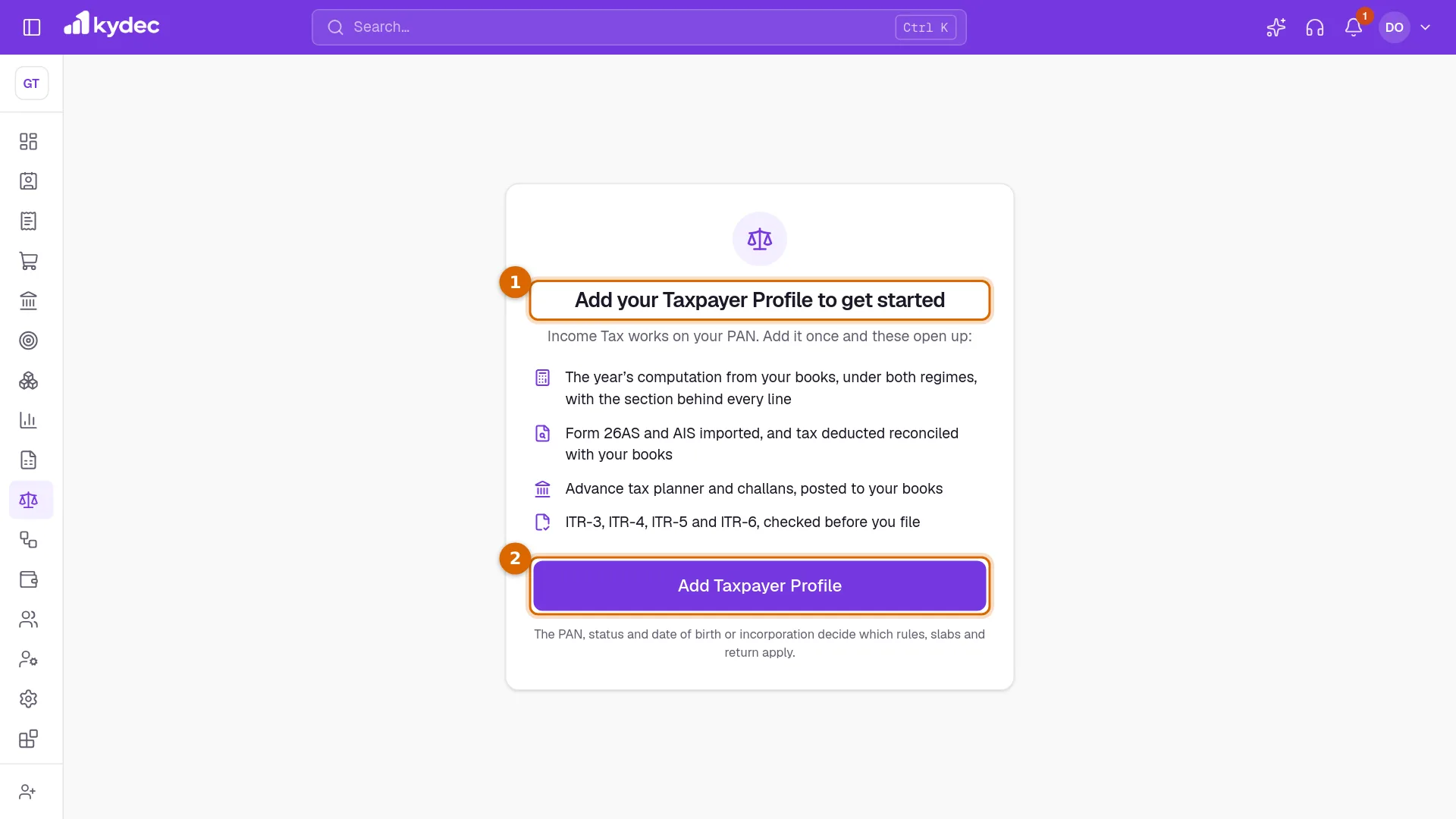
- 1Before a profile is saved, every Income Tax page except Taxpayer Profile and Audit Log shows Add your Taxpayer Profile to get started, with what the profile opens up.
- 2Click Add Taxpayer Profile. You can also open Taxpayer Profile from the sidebar at any time.
Good to know. A business has one taxpayer profile, because one PAN files one return.
Fill in the Taxpayer Profile
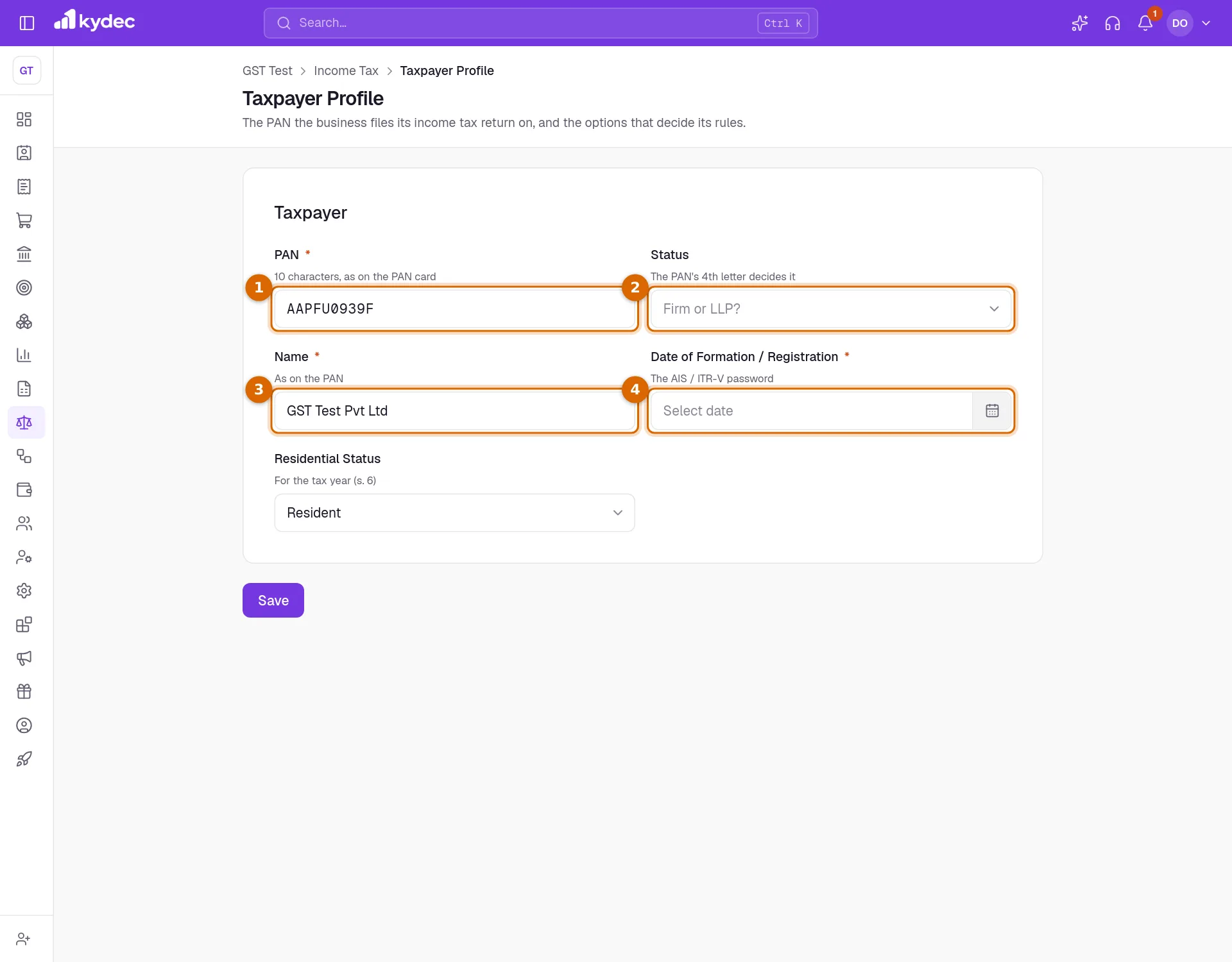
- 1Type the PAN, ten characters as on the PAN card. If the business has a GSTIN in KyDec, the PAN it carries is filled in for you.
- 2Status is the kind of taxpayer. KyDec reads it from the fourth letter of the PAN: P is Individual (proprietor), H is Hindu Undivided Family and C is Company. For F you choose between Partnership firm and Limited liability partnership.
- 3Check the Name. It must read as on the PAN.
- 4Choose the date. The field is Date of Birth for an individual, Date of Incorporation for a company, Date of Formation for a HUF and Date of Formation / Registration for a firm or an LLP. For an individual it gives the age the tax slabs depend on. For everyone it is what opens a locked Form 26AS or AIS file.
- 5Choose the Residential Status: Resident, Resident but not ordinarily resident (an individual or a HUF only) or Non-resident.
- 6An individual can add the Aadhaar number, which the return quotes. It is kept encrypted and shown only by its last four digits.
- 7Set the Options described below and click Save.
- If the business has a GSTIN on a different PAN, the profile is not saved. The GSTINs and the income tax of one business are on one PAN.
- If another of your businesses in KyDec uses the same PAN, a notice names it. One PAN files one return: prepare the return in one business and enter the profit of the other there.
Good to know. A non-resident can save a profile, but the computation does not cover non-residents yet, so no return file can be made for one.
The options on the profile
The Options card appears once the PAN gives a status. It records what the law lets this kind of taxpayer choose, and what was chosen before you started with KyDec.
- An individual or a HUF sets New Tax Regime (s. 115BAC). A regime is one of the two sets of tax rates and reliefs. The choices are Never opted out — on the new regime, Opted out by Form 10-IEA — on the old regime and Opted out and came back — cannot opt out again. This tells KyDec where you stood before. The regime of each year is chosen on the computation.
- An individual, a HUF or a firm picks Earlier Years Declared under s. 44AD: the past years in which income was declared under that presumptive scheme. KyDec uses them to check whether the scheme is still open to you.
- A company sets Tax Option: Normal provisions (25 % / 30 %, MAT applies), Section 115BAA — 22 % (Form 10-IC) or Section 115BAB — 15 %, new manufacturing (Form 10-ID). For either section you also choose Exercised for the Year, and can add the acknowledgement number of the form.
- An LLP has nothing to choose here.
Good to know. The profile has no assessment year or financial year. The year is chosen on each page, under Tax Year.
The tax year you work on
- Each working page has a Tax Year picker at the top. Today it offers FY 2025-26 (AY 2026-27) and Tax Year 2026-27.
- FY is the financial year in which the income is earned. AY is the assessment year that follows it, in which the return is filed.
- Income Tax always works on 1 April to 31 March, whatever financial year your books use.
- Pages about the return open on the last year that has ended. Tax Payments opens on the year running now, because advance tax is paid during the year.
- The links between Income Tax pages keep the year you chose. Opening a page from the sidebar goes back to its usual year.
Read the Dashboard
The line under the heading names the taxpayer: the name, the PAN and the status.
- 1Four figures run across the top: the return of the last year that ended (its form, and its due date or where it stands), Balance payable or Refund due for that year, the advance tax to pay next for the year running now, and Tax deducted at source. Click a figure to open its page.
- 2Tax Position sets out the year: total income, the tax for the year, what is taken off for tax deducted and collected at source, advance tax and self-assessment tax, the interest and late fee added, and the balance. Under it you see whether Form 26AS and AIS / TIS are imported.
- 3Recent Activity lists the last things done under Income Tax. Audit Log opens the full list.
- 4When something needs doing, a box at the top counts the things to do. Each has a link to the page where it is done: a computation not saved, a return due soon or overdue, a balance to pay, a statement not imported, a return waiting to be verified, or an advance tax instalment coming up.
- 5The button at the top right is the next step for the return: Prepare the Return, Validate the Return, File the Return or Verify the Return.
- 6When advance tax is due for the running year, a table shows each instalment: what it requires, what was paid by its date, and the shortfall.
Good to know. Until a computation is saved for the year, the figures are worked on the books alone and the balance shows a dash.
Check the Audit Log
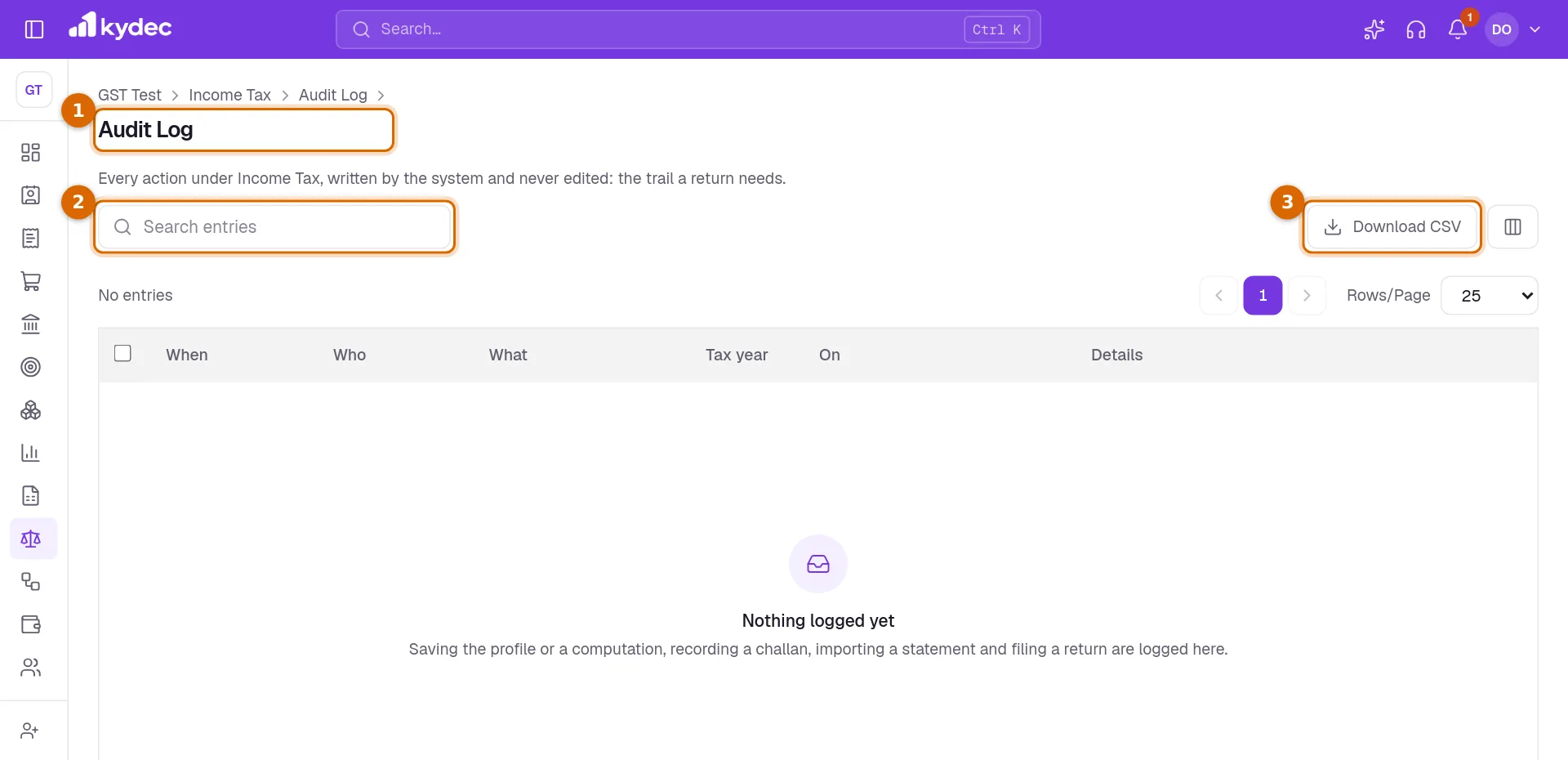
- 1Open Audit Log. Each line is one thing done under Income Tax: When, Who, What, the Tax year and what it was done On.
- 2Search entries finds a line by the person, the action, the year or the subject.
- 3Download CSV saves the list as a file for a spreadsheet.
- 4The eye on a row (View details) opens everything that was recorded for that line.
- These are logged: saving the profile or a computation, recording or removing a tax payment, importing or removing a statement, linking a deductor to a client, saving, validating and downloading a return, marking it as filed or taking that back, recording its verification, uploading the acknowledgement, and posting or taking off the year-end provision.
Good to know. The log is written by KyDec. A line cannot be edited or deleted.
Common questions
- Does KyDec file my income tax return or pay the tax for me?
- No. KyDec works out the tax and makes the return file. You upload the file and submit it on the income tax portal, pay the tax there, and record the challan and the filing in KyDec.
- Why is Income Tax missing from my sidebar?
- Either the country of the business is not India, or your role does not include View income tax. The country is set in Business Profile. Roles are set by whoever manages your team.
- My PAN is not accepted. Why?
- A PAN is five capital letters, four digits and a letter. Its fourth letter must be P, H, F or C: an individual, a HUF, a firm or LLP, or a company. A PAN of another kind of holder is not covered yet. The PAN is also refused if the business has a GSTIN on a different PAN.
- I run two businesses on one PAN. Do I prepare two returns?
- No. One PAN files one return. Prepare it in one business, and on its computation enter the profit of the other under Profit of Another Business on the Same PAN. The profile shows a notice when two of your businesses share a PAN.
- Where do I choose the assessment year?
- Not on the profile. Each page has a Tax Year picker at the top, and the links between the pages keep the year you chose.
Related guides
Books and tax computation
Turn your books into a tax computation: business and other income, deductions, tax credits and the challans you have paid.
AIS, Form 26AS and reconciliation
Import your Form 26AS and AIS and check them against your books, so the tax credit you claim matches what the department has.
Prepare and file your ITR
Prepare your income tax return, validate it, download the file to upload on the department’s portal, and keep the acknowledgement.
Business profile
The name, tax registration and address printed on everything you issue. Getting these right once keeps every document compliant.