
Help
AIS, Form 26AS and reconciliation
Import your Form 26AS and AIS and check them against your books, so the tax credit you claim matches what the department has.
Where to find it:Income TaxForm 26AS
What these statements are
The income tax department keeps statements against your PAN. Form 26AS is the tax credit statement: the tax deducted at source (TDS) and collected at source (TCS) on your PAN, as the people who deducted it reported it.
The AIS (Annual Information Statement) is wider. It also carries what banks, companies and others reported about you, such as interest and dividends. The TIS (Taxpayer Information Summary) is the same information grouped by kind.
You download a statement from the portal and import the file here. KyDec keeps its lines, gives credit for TDS and TCS as the statement shows them, and sets the statement beside your books under Reconciliation.
Good to know. KyDec does not fetch these statements from the income tax department. Every import starts with a file you downloaded yourself.
Before you start
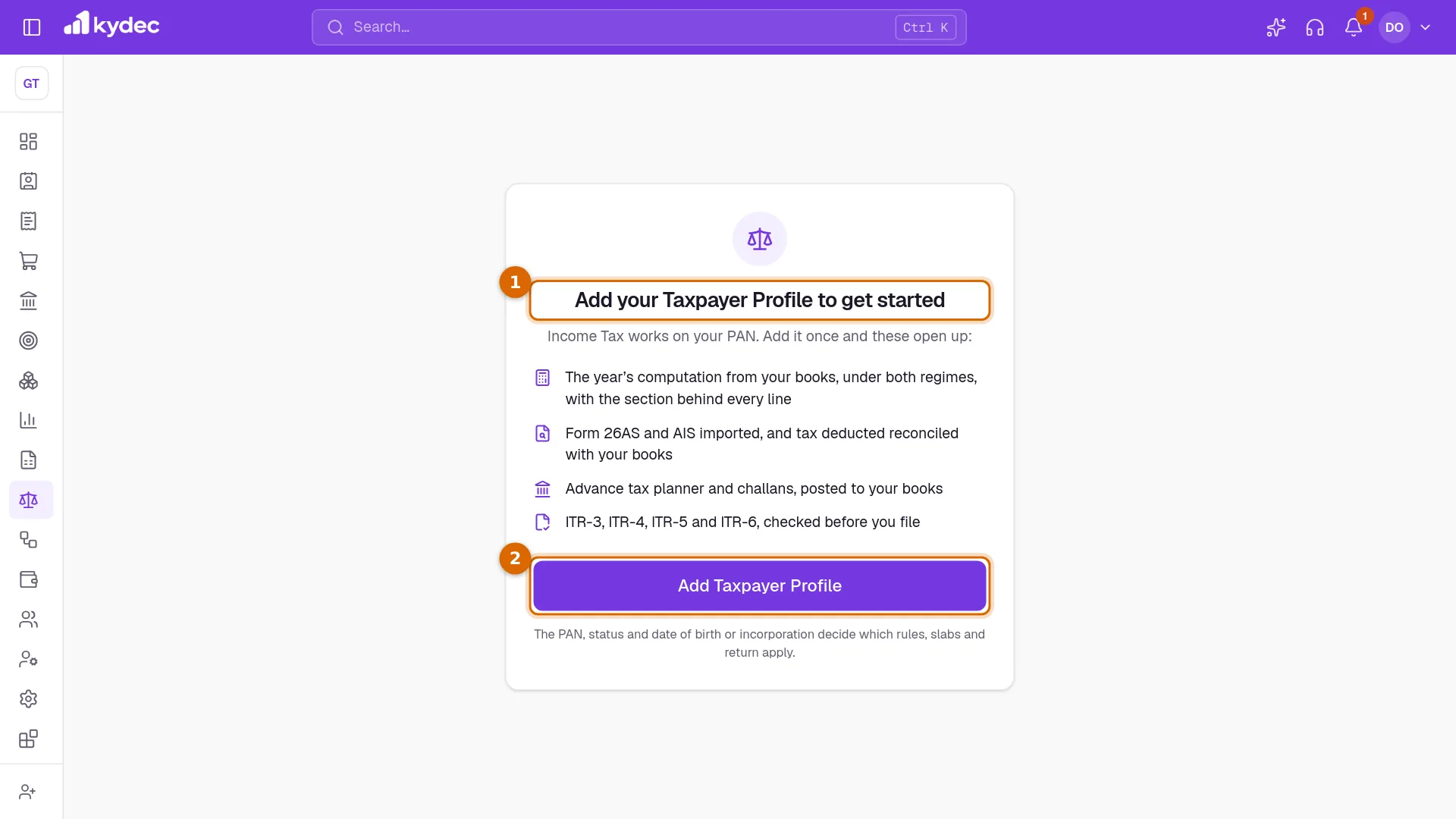
- 1If the page shows Add your Taxpayer Profile to get started, no PAN is saved for this business yet.
- 2Click Add Taxpayer Profile, fill it in and save. Then come back.
- Check the date of birth or incorporation on the Taxpayer Profile. A locked Form 26AS PDF and the AIS file are opened with it.
- Your role needs Prepare computations and record tax payments to import or remove a statement, and to link a deductor to a client.
Import Form 26AS
Open Form 26AS under Income Tax.
- 1Choose the Tax Year the statement is for.
- 2Click Import Form 26AS and choose the file. Two files are accepted: the PDF, or the Text export. Both come from TRACES, which the e-filing portal opens when you choose to view Form 26AS. There you choose the year and export the statement.
- 3Until a statement is imported, the panel under the buttons tells you where to get the file. After that it shows the totals of the statement.
- 4Search lines finds a deductor by name or number, a section or a description in the lines below.
- A locked PDF is tried with the date of birth or incorporation on the Taxpayer Profile. If it still does not open, Password of the file asks for it: that date as DDMMYYYY. Type it and click Open and Import.
- The PDF must be the one TRACES makes. A scan or a photo has no text to read and is refused.
- The file is checked before anything is kept. A statement for another PAN, or for a different year from the one chosen, is refused with the reason.
- From a PDF, KyDec adds up the transactions of each deductor and compares them with the total the statement prints. A deductor that does not add up is named in a warning, for you to check against the PDF.
- After an import the button reads Import Form 26AS Again. Importing again replaces the lines of that year. Remove takes the statement out.
Good to know. The file itself is not kept, only its lines. A file can be up to 25 MB.
Import the AIS
Open AIS / TIS under Income Tax. One import serves both: the TIS view is built from the AIS.
- 1Click Import AIS / TIS and choose the AIS file in JSON form. On the portal it is offered under AIS, Annual Information Statement, Download, JSON.
- 2The panel shows the totals once the file is in. A second panel, By kind of information (as the TIS groups it), adds up the same lines by what they report.
- The JSON file from the portal is locked. KyDec opens it with the PAN and the date of birth or incorporation on the Taxpayer Profile. If that fails, Password of the file asks for it: the PAN in lower case followed by that date as DDMMYYYY.
- The AIS as a PDF or as a CSV cannot be read.
- A file that opens but is not laid out as an AIS is refused. KyDec does not guess at it.
- The portal's TIS also shows a value after your feedback on each line. That is given on the portal and is not in the file, so it is not shown here.
Good to know. There is no separate TIS file to import.
What is read and shown
- Every line is filed under a kind: Tax deducted (TDS), Tax collected (TCS), Tax paid, Refunds, Demands and defaults, Reported transactions (SFT) or Other information.
- The totals give, for each kind, Lines, Amount, Tax and Given as credit. Click a kind to show only its lines. Show all brings the rest back.
- The list shows each line: Part, Kind, Name, TAN / PAN, Section / code, Date, Amount, Tax, Status and What it is. TAN is the tax deduction account number of whoever deducted the tax. The eye on a row (View the line) shows everything the file said of it.
- Given as credit can be less than Tax. In Form 26AS, credit is given on lines booked with status F or P. A line with status U or O gives no credit until the deductor corrects its own statement, and a warning counts such lines.
- In the AIS, a line marked inactive, deleted or duplicate gives no credit.
- Tax that you deducted yourself, as a buyer or a tenant, appears in Form 26AS too. It is filed under Other information, because it is not your credit.
- Where both statements are imported for a year, credit is taken from Form 26AS. With only the AIS, it is taken from the AIS.
Good to know. Once a statement is imported, the computation credits TDS and TCS as the statement shows them. What your books show, and what you typed as Other TDS and TCS, is no longer used for that year.
Reconcile with your books
Reconciliation sets what the department holds against your PAN beside your books, for the Tax Year chosen at the top.
- 1Tax deducted at source compares the statement with the books: In the statement, Of it, given as credit, Withheld by clients in the books and the Difference.
- 2The four standings, each with a count, are Matched, Different amount, In statement only and In books only. Click one to show only those deductors in the list.
- 3Tax paid by challan sets the challans in the statements beside the ones you recorded under Tax Payments. They are matched by BSR code, date and challan serial number.
- 4What others reported compares the interest, dividends and GST turnover reported about you with what the computation and the books hold. Reported more by shows where more was reported than you entered.
- 5The list below has a row for each deductor, with Deductor in the statement, TAN, Client in the books, TDS in statement, Given as credit, TDS in books and Difference.
- TDS in the books is the TDS Withheld on your payment receipts dated in the year, client by client.
- A deductor is matched to a client by name, among the clients with TDS Withheld on a receipt in the year. Words such as M/s, Pvt, Ltd, Limited, LLP, Co, Company and India are ignored, and so is punctuation.
- Totals for the year are compared, never line by line: a deductor reports when it credits you, and your receipt is dated when it pays. A difference of up to ₹1 counts as matched.
- Interest and dividends are compared with what you typed under Other Sources on the computation. GST turnover is compared with the sales in your books for the year, before GST.
- Download CSV saves the list of deductors.
What each standing means, and what to do
- Matched: the statement and your books agree for that client. Nothing to do.
- Different amount: both show tax for the client, but the totals differ. Check the TDS Withheld on that client's receipts for the year. If the statement shows less, the client has not reported all of it.
- In statement only: a deductor no client answers to. If it is one of your clients under another name, or a client whose receipts show no TDS for the year, click Link…, choose the Client and click Link. Every line of that deductor, in this and later years, then follows the link, and the row is compared with that client. Unlink undoes it.
- In books only: a client held back tax, but the statement does not show it. No credit is given until the client reports it. Follow up with the client and ask for Form 16A.
- Where Given as credit is less than TDS in statement, the deductor's statement is not booked as final. Ask the deductor to correct its TDS return.
- A challan that is In statement only was paid but not recorded here: add it under Tax Payments. One that is In books only is recorded here but is not in the statements.
Good to know. Reconciliation changes no figure by itself. Linking a deductor only says which client it is.
Rules and limits
- One statement of each kind is kept for a year. Importing again replaces it. The links you made by hand are kept.
- Remove asks you to confirm. Tax credits then go back to what the books show.
- Once a return is filed for the year, its statement cannot be removed: the credits of the return were taken from it.
- Importing, removing and linking are written to the Audit Log.
Common questions
- Can KyDec download my Form 26AS or AIS for me?
- No. KyDec is not connected to the income tax portal. Download the file there and import it on the Form 26AS or AIS / TIS page.
- Which Form 26AS file should I import, the PDF or the Text export?
- Either. Both are read into the same lines. For a PDF, KyDec also checks that the transactions of each deductor add up to the total the statement prints.
- The file asks for a password. What is it?
- For a Form 26AS PDF it is the date of birth or incorporation as DDMMYYYY. For the AIS file it is the PAN in lower case followed by that date. KyDec tries the date on your Taxpayer Profile first, so check it there.
- Why is the credit less than the TDS in my statement?
- Some lines are not booked as final by the deductor. In Form 26AS these carry status U or O. No credit is given for them until the deductor corrects its TDS return.
- A client deducted tax, but it is not in my Form 26AS. What happens?
- The client shows as In books only on Reconciliation, and under Withheld, Not Yet Claimable on Tax Credits. No credit is given until the client reports the tax. Follow up and ask for Form 16A.
Related guides
Books and tax computation
Turn your books into a tax computation: business and other income, deductions, tax credits and the challans you have paid.
Prepare and file your ITR
Prepare your income tax return, validate it, download the file to upload on the department’s portal, and keep the acknowledgement.
Payment Receipt
Every payment a client has made you, whether it was recorded against an invoice or matched from a bank statement. Money that settles no document yet stands here as an advance.
Clients & Prospects
Every business you sell to, and the ones you hope to. A prospect becomes a client the moment you invoice it; archiving keeps old ones out of the way without losing their history.