
Help
Prepare and file your ITR
Prepare your income tax return, validate it, download the file to upload on the department’s portal, and keep the acknowledgement.
Where to find it:Income TaxITRPrepare ITR
What KyDec does, and what you do on the portal
KyDec prepares your income tax return (ITR) for the year from the saved computation, checks it, and gives you the return file. You upload that file on the income tax portal, submit it there and verify it. Then you record the filing here.
The three pages under ITR follow that order: Prepare ITR, Validate ITR, File ITR. Filed Returns lists every return. Acknowledgements keeps the ITR-V, the acknowledgement the portal gives, and how the return was verified.
Good to know. KyDec is not connected to the income tax portal and does not file the return for you. File ITR gives you the file and the steps, and Mark as Filed only records what you did on the portal.
Before you start
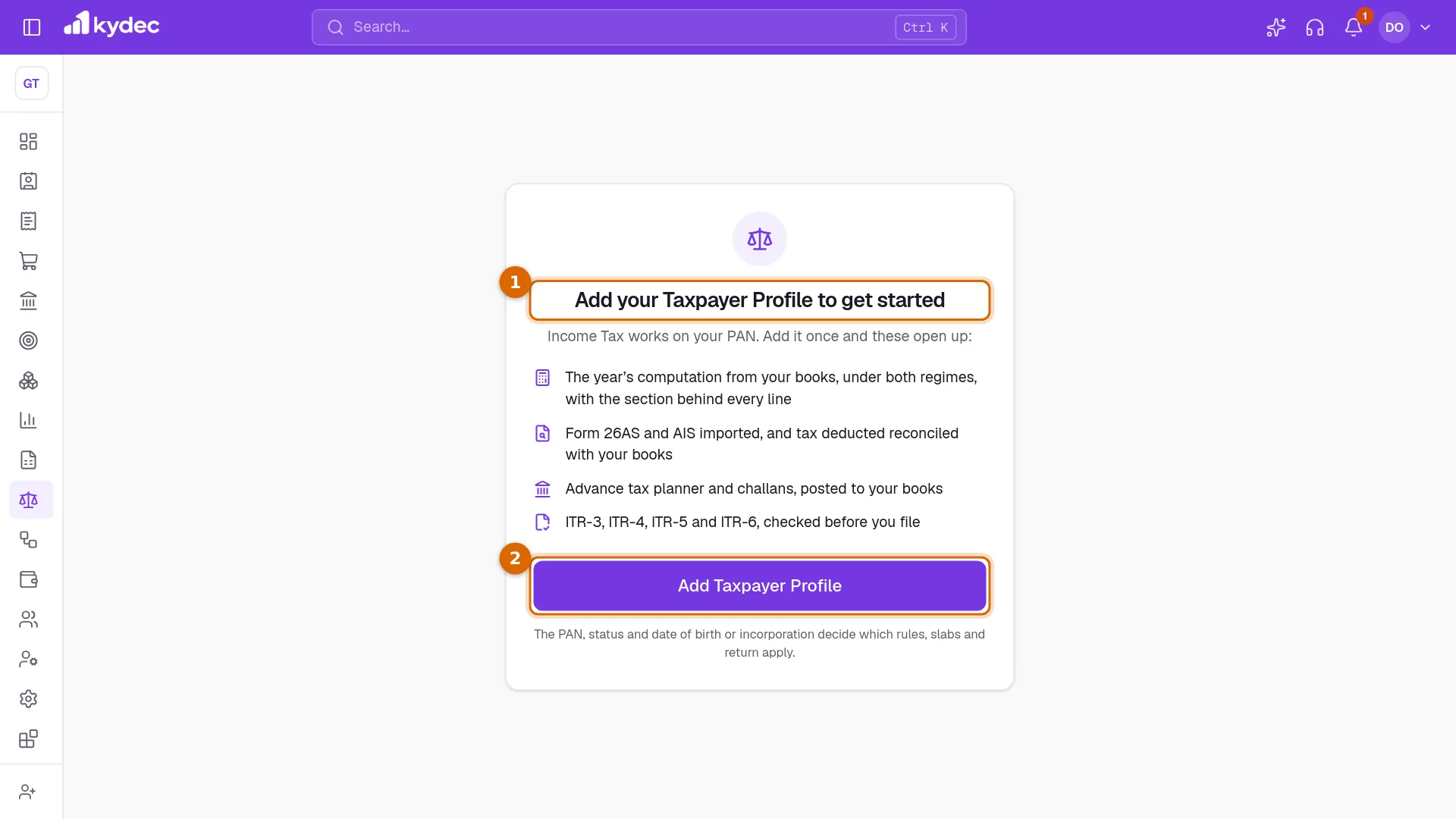
- 1If the page shows Add your Taxpayer Profile to get started, no PAN is saved for this business yet.
- 2Click Add Taxpayer Profile, fill it in and save. Then come back.
- Save the computation of the year under Books & Tax Computation. The return is made from it, and Prepare ITR does not save without it.
- Import Form 26AS for the year. The return lists tax deducted deductor by deductor, so a return that claims TDS or TCS cannot be validated without a statement.
- Record every challan under Tax Payments, including the balance paid as self-assessment tax.
- Keep the bank accounts of the business under Banking & Payments, Bank Accounts. The return picks its bank accounts from there. The address comes from Business Profile.
Which form your return goes on
KyDec chooses the form from the taxpayer and the computation, and says why on the Return card. It makes the file for four forms, for FY 2025-26 (AY 2026-27).
- ITR-4 (Sugam): an individual, a HUF or a firm that is not an LLP, whose business income is presumed under s. 44AD, 44ADA or 44AE, who is resident and ordinarily resident, with total income within ₹50 lakh and nothing in the computation that calls for a longer form.
- ITR-3: an individual or a HUF to whom ITR-4 is not open, for example because income is worked from the books.
- ITR-5: an LLP always, and a firm to which ITR-4 is not open.
- ITR-6: a company.
- ITR-4 is closed by, among others, capital gains other than long-term gains on listed equity up to ₹1.25 lakh, winnings, a loss brought forward or carried forward, more than two house properties, income of another business, or the answer Yes under Before the Form Is Chosen. The card lists the reasons that apply to you.
- The ITR-3, ITR-5 and ITR-6 files cannot be made yet where the year has capital gains, the profit of another business on the same PAN or a speculation loss, or for a foreign company. The page then says the form is Not Made by KyDec Yet: file that return on the portal from the figures of the computation and Tax Credits.
- For Tax Year 2026-27 no form is offered yet, because its return forms are not notified.
Prepare ITR: give what the form asks
Open Prepare ITR under Income Tax, ITR. Here you give what the form asks beyond the computation.
- 1Choose the Tax Year.
- 2The Return card on the right shows the three steps, 1. Prepare, 2. Validate and 3. File. Under them are the Form, whether the return is original, belated or revised, the Due date and the last date it can be filed.
- 3Standing is where the return is: Not started, Being prepared, Valid, ready to file, Filed, to be verified or Filed and verified.
- 4Fill in each card on the left. What KyDec already holds is filled in for you: the address from Business Profile, the bank accounts from Bank Accounts, and the turnover of each GSTIN from your GST returns and invoices.
- 5Click Save. The return is now Being prepared, and the page offers Validate ITR as the next step.
- What is asked depends on the form and on the computation. For ITR-4 it includes Before the Form Is Chosen, Address and Contact, Bank Accounts, Nature of Business and Financial Particulars of the Business, and the papers behind each deduction claimed.
- ITR-3, ITR-5 and ITR-6 ask for the Balance Sheet as on 31 March and, where income is worked from the books, the Profit and Loss Account. With Advanced Accounting on, both start from your books. ITR-5 asks for the Partners, ITR-6 for the Company and its Directors and Key Persons, and an audited business for the Tax Audit (s. 44AB) report.
- If no computation is saved, the page says Save the Computation First. If the computation has errors, The Computation Has Problems lists them.
- A filed return is shown as it was filed and cannot be changed here.
Good to know. Saving the details again after validation puts the return back to Being prepared. Validate it again.
Validate ITR: check the return
- 1Open Validate ITR and click Validate. KyDec builds the return from the saved computation and the details, and checks it.
- 2The Return card keeps the three steps in view. After a clean check its Standing reads Valid, ready to file.
- 3A card headed with a count, such as 2 to Fix, lists what stops the return. Each line has a link to the page where it is put right: Prepare ITR, Books & Tax Computation, Deductions, Tax Payments, Form 26AS or Taxpayer Profile.
- 4A card such as 3 to Check lists warnings. They do not stop the return, but read each one before filing.
- 5When nothing is left to fix, the page says The Return Is Valid and names the version of the form it was checked against. Go on to File ITR.
- KyDec checks that every required detail is filled in, that the computation has no errors, that the lists you typed add up to the computation, that each challan has its BSR code and serial number, that exactly one bank account is marked for the refund, and that the finished file fits the layout the department publishes for the form.
- If the computation claims TDS or TCS and no statement is imported, validation stops and asks you to import Form 26AS for the year.
- Saving the computation or the details afterwards calls for validating again. While a return stands as valid, the button reads Validate Again.
Good to know. The portal checks the file again when you upload it. A return that is valid in KyDec can still be questioned there.
File ITR: download, upload, mark as filed
- 1Open File ITR. Until the return has passed validation, the page says Validate the Return First.
- 2Check that Standing on the Return card reads Valid, ready to file. Three cards then show, in order.
- 31. Download the File: click Download. KyDec builds the return file afresh and saves it to your computer. Its name carries your PAN and the form, and ends in .json.
- 42. Upload It on the Portal: follow the steps on the card. Sign in at incometax.gov.in with the PAN, choose to file the income tax return for the assessment year with Offline as the mode of filing, attach the file and let the portal validate it. Pay any balance and record its challan under Tax Payments. Then submit and verify the return on the portal.
- 53. Mark It as Filed: enter Filed On (the date on the acknowledgement) and the Acknowledgement Number (15 digits), then click Mark as Filed.
- If your books, the computation or a statement changed after validation, Download gives no file. It tells you to validate again.
- Marking as filed locks the year: the computation cannot be saved, and its challans and its statement cannot be removed.
- The filing date is checked. It cannot be in the future, or within the year itself. A return prepared as filed in time is not accepted with a date after the due date: set the Date of Filing on the computation, validate again and file that file.
- An acknowledgement number already used on another of your returns is refused.
Good to know. Nothing is sent to the income tax department when you click Download or Mark as Filed. The return is filed only when you submit it on the portal.
After filing: verification, acknowledgements and corrections
- A filed return shows Filed on, the Acknowledgement number and, until it is verified, the date to verify by with the days left. KyDec counts 30 days from the day of filing.
- Open Acknowledgements to record the verification. Click Record verification, set Verified On and How, and click Save. The choices are Aadhaar OTP, EVC (net banking, bank or demat account), Digital signature (DSC) and Signed ITR-V sent to CPC, Bengaluru. The return then reads Filed and verified.
- Upload ITR-V keeps the acknowledgement PDF from the portal with the return. Click its name to download it again. Replace ITR-V swaps it.
- Filed Returns lists every return by year, including one still being prepared: the Form, whether it is original, belated or revised, its Standing, Filed on, the Acknowledgement and the verification. The link at the end of a row opens it.
- The File as Filed on File ITR downloads the file as it was when you marked the return as filed.
- Marked by mistake? Unmark as Filed takes it back, as long as the return is not yet verified. The computation opens again, and any ITR-V kept with the return is removed.
- Found a mistake after filing? Start a Revised Return opens the computation for the correction and starts a new return of the kind Revised. The first return stays on record. The page shows the last date for revising.
Good to know. Verification itself is done on the portal or by post. KyDec only records when and how you did it.
Rules and limits
- KyDec makes return files for FY 2025-26 (AY 2026-27) only, on ITR-3, ITR-4, ITR-5 and ITR-6.
- A return filed after the due date is prepared as Belated. The Return card shows the last date it can be filed. After that date only an updated return (ITR-U) is open, and KyDec does not make that yet.
- In the ITR-3, ITR-5 and ITR-6 files some schedules are left for you to complete on the portal: losses carried forward (Schedule CFL), assets and liabilities where total income is above ₹1 crore (Schedule AL), and the detail of minimum tax and its credit. Validate ITR lists these as warnings when they apply.
- Every save, validation, download, filing and verification is written to the Audit Log.
Common questions
- Does KyDec file my return with the income tax department?
- No. KyDec makes the return file and checks it. You upload and submit it on the income tax portal, then come back and click Mark as Filed with the acknowledgement number. That click records the filing; it does not file anything.
- Which ITR form will I get?
- A company gets ITR-6 and an LLP gets ITR-5. An individual, a HUF or a firm gets ITR-4 (Sugam) when business income is presumptive and nothing calls for a longer form. Otherwise an individual or a HUF gets ITR-3 and a firm gets ITR-5. The Return card names the form and the reasons.
- Download tells me to validate again. Why?
- The file is built afresh each time you download it. If the books, the computation or a statement changed since the return was validated, the file would differ, so KyDec asks you to run Validate ITR again first.
- Why does Validate ask me to import Form 26AS?
- The computation claims tax deducted or collected at source, and the return must list it deductor by deductor. Import the statement for the year on the Form 26AS page, then validate again.
- I marked the return as filed by mistake. Can I undo it?
- Yes, until its verification is recorded. On File ITR, click Unmark as Filed. The return goes back to Valid, ready to file and the computation opens again.
Related guides
Books and tax computation
Turn your books into a tax computation: business and other income, deductions, tax credits and the challans you have paid.
AIS, Form 26AS and reconciliation
Import your Form 26AS and AIS and check them against your books, so the tax credit you claim matches what the department has.
Income Tax
Work out your business’s own income tax: set up the taxpayer profile once, then follow what is due from the dashboard.
Balance Sheet
What the business owns and owes on a date, with an earlier date beside it and the entries behind every figure.