
Help
Items
Your catalogue of products and services: add items with their prices, tax and units, see each one’s stock and transactions, and adjust stock.
Where to find it:Products & InventoryAll Items
What an item is
An item is one product or service that you buy or sell: its name, its code (the SKU), its prices, its tax rate and, for a product, how much of it you hold.
There is one item list for the whole business. All Items shows it as a table, and the lines of every document offer the same items to pick from. Change a price here and the next document starts from it.
You do not have to add every item by hand. When you save a document with a line that names something new, KyDec adds it to your items. A line marked One Time is not added.
Good to know. Stock changes when you give an item its Initial Stock, when you use Adjust Stock or Transfer Warehouse Stock, and when a document moves it. With Manage inventory on, a document set to Auto Update in Business Settings, Inventory, Inventory auto-update settings moves stock a few seconds after it is saved: a sale takes it out, a purchase brings it in.
Find your way round the list
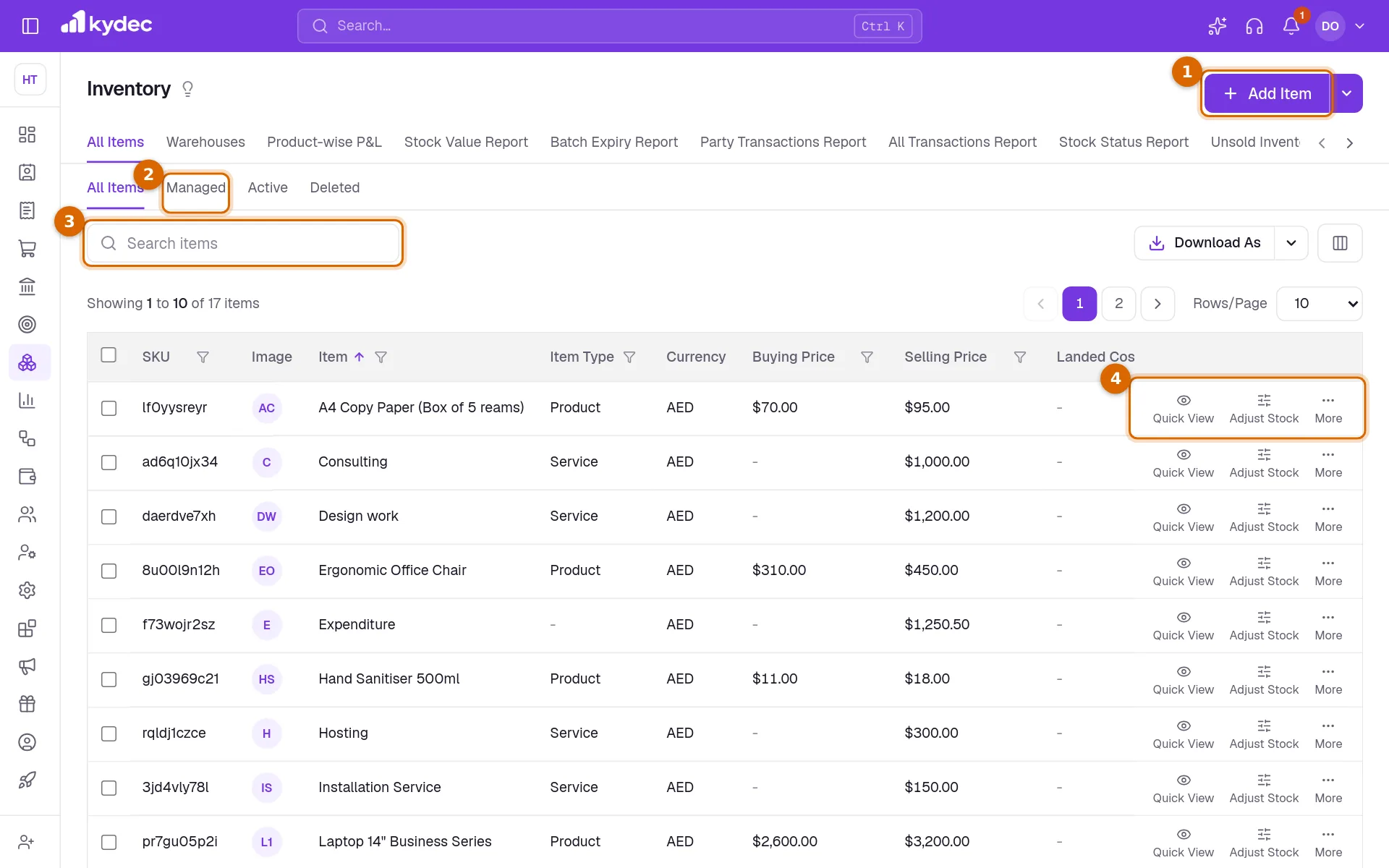
Open Products & Inventory in the sidebar and choose All Items. The row of tabs at the top leads to the other Products & Inventory pages.
- 1Add Item opens the form for a new item.
- 2The tabs split the list. All Items is everything, deleted items included. Managed is the items you keep stock for. Active is every item that is not deleted. Deleted holds the ones you removed.
- 3Search items finds an item by its name, SKU, category or HSN code.
- 4Each row ends with Quick View, Adjust Stock and More, which holds everything else you can do with the item.
- The Manage Stock switch on a row decides whether KyDec keeps a stock count for that item. Turning it off asks you to confirm, and takes the item out of Managed, the Warehouses page and the Stock Value, Stock Status and Unsold Inventory reports.
- The Strict Control switch is locked until Manage inventory and Allow strict control for items are both on in Business Settings › Inventory.
- The filter under each column heading and the sort arrows narrow the list, for example to one Stock Status or one Item Type.
- Download As saves the list as a CSV file. Download CSV with Batch Data gives a row for each batch of an item, with its code, name, manufacturer, dates and stock (and its vendor, for those who may see vendors); an item with no batch keeps one row. The columns button beside it (Show/Hide Columns) adds columns such as Description, Initial Stock, Tracking Method and HSN.
- While Manage inventory is off, a notice at the top of the list offers Go to Business Settings.
Add an item
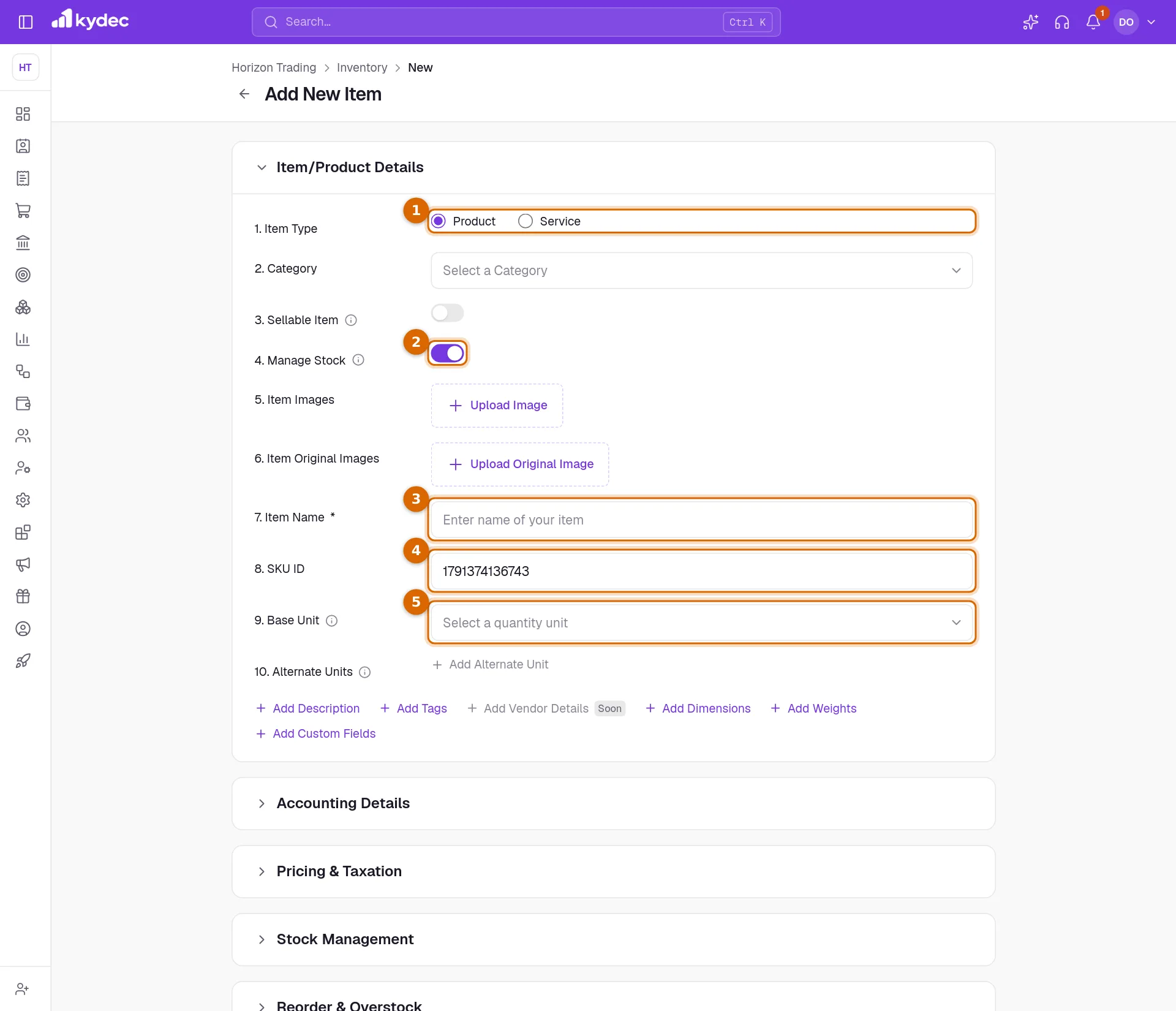
Click Add Item. The form opens on Item/Product Details. Only the item name is required.
- 1Choose the Item Type: Product or Service. Then pick a Category, or type a new name and choose Create New - … to add it to your list.
- 2Sellable Item marks an item you sell to clients. Manage Stock decides whether KyDec keeps a stock count for it. Some categories set these two switches for you; you can change them afterwards.
- 3Enter the Item Name. Two items cannot share a name.
- 4SKU ID is the item's code. KyDec suggests one; replace it with your own if you have one. It can use letters, digits, full stops, underscores, slashes and hyphens, and two items cannot share one.
- 5Choose the Base Unit: the unit the stock is counted in, such as PCS or KGS. The list holds your active units. Once stock of the item has moved, or a document names it, the base unit stays as it is.
- 6The links under the fields add the optional ones: Add Description, Add Tags, Add Dimensions, Add Weights and Add Custom Fields. Dimensions and weights are offered for products only.
- 7Fill in the other sections you need, covered next, and click Save & Add Item.
Good to know. Item Images and Item Original Images keep one picture each. Alternate Units and the default units appear once Enable UOM is on in Business Settings › Inventory (see Units of measurement below). Add Vendor Details (products only) chooses the vendors you buy the item from: a Preferred vendor first, then any others. The item page lists them, the preferred one marked. A batch can name the vendor it came from too, in its own form. A vendor named on an item or a batch cannot be deleted until it is taken off them.
Prices, tax and stock
The rest of the form is in sections that open when you click their heading: Accounting Details, Pricing & Taxation, Stock Management and Reorder & Overstock.
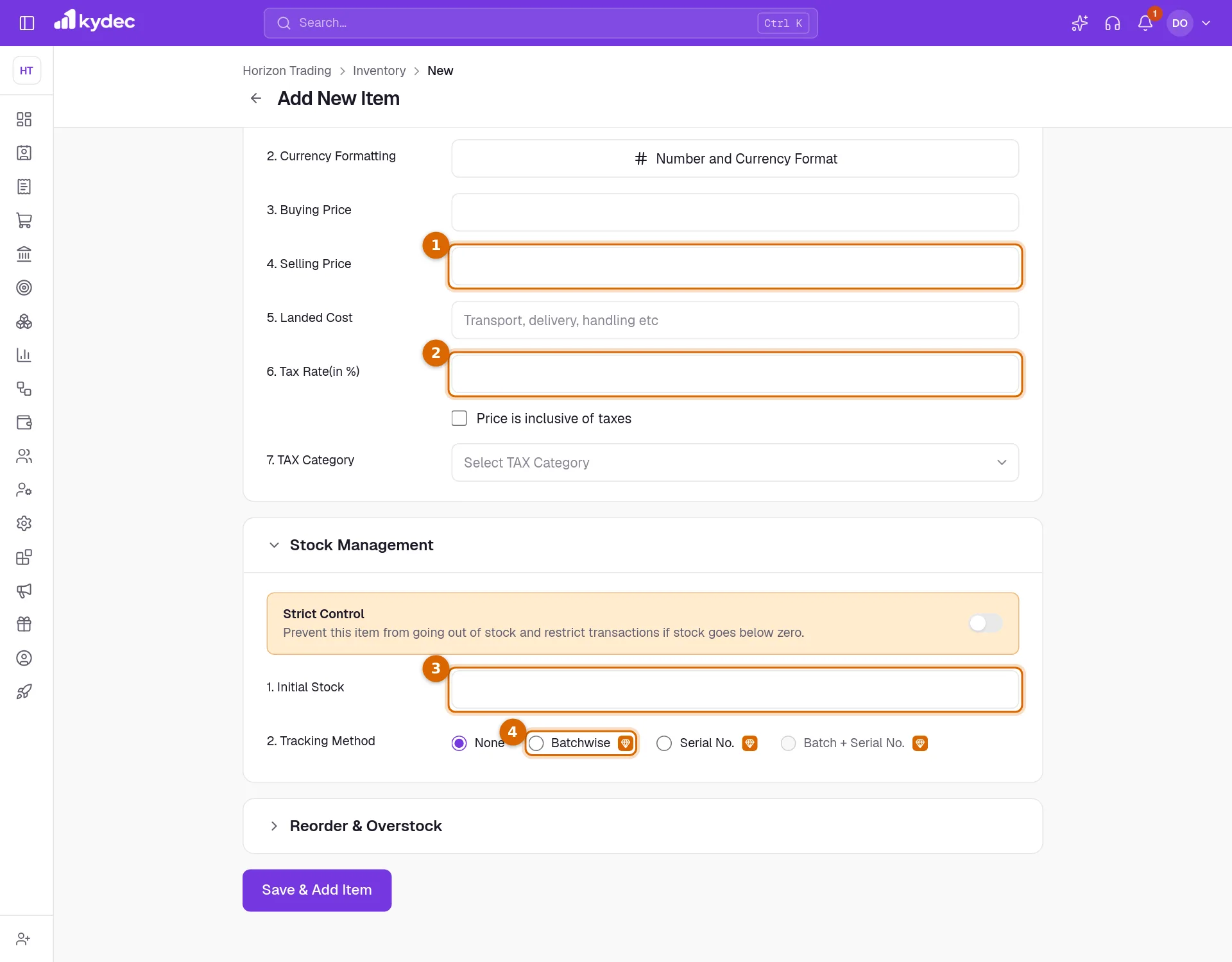
- 1In Pricing & Taxation, enter the Selling Price: the rate a document line starts with when you pick the item. Buying Price is what one unit costs you, and Landed Cost is for transport, delivery and handling.
- 2Enter the Tax Rate(in %) and choose the TAX Category. Tick Price is inclusive of taxes if your prices already include tax.
- 3In Stock Management, enter the Initial Stock: how many you hold today.
- 4Choose the Tracking Method. None keeps one count. Batchwise keeps batches, added with + Create Batch. Serial No. keeps one serial number for each unit, added with + Add Serial Numbers.
- 5In Reorder & Overstock, set the Reordering Point and the Overstock Point if this item needs its own. They start from the levels in Business Settings, and the overstock point must be the higher of the two.
- 6Click Save & Add Item. You are taken back to the list.
- With Batchwise or Serial No. there is no Initial Stock box: the stock is the total of the batches, or the number of serial numbers.
- With warehouses switched on, Initial Stock shows the total and you enter the stock for each warehouse under Warehouse; a batch's Opening Stock is entered for each warehouse too, and a serial-tracked item lists each warehouse with its own Add Serial Numbers. See Warehouses.
- Initial Stock can be typed only while the item's Manage Stock is on. Reorder & Overstock is part of a paid plan: on Basic the boxes show your business's points and cannot be changed.
- Under Reorder & Overstock, Warehouse Level lets the item keep its own Reordering Point and Overstock Point for a warehouse. On the Warehouses page, with that warehouse chosen, the item's Stock Status is then judged on what the warehouse holds against those points.
- Serial numbers are typed or pasted, separated by commas, spaces or new lines, up to 5,000 at a time. Each can be up to 50 characters, and repeats are dropped. A Warranty Duration can be saved with them.
- The serial numbers on the item form are the ones it starts with. Serials bought later arrive on purchases, or with Adjust Stock, and are listed on the item's Serials tab.
- Currency is the currency the item is priced in. It starts as your business currency. A business that charges GST also has HSN / SAC in this section.
- Strict Control refuses a stock adjustment that would take the item below zero. It is locked until Manage inventory and Allow strict control for items are both on in Business Settings › Inventory.
- Under Accounting Details, Purchase Ledger and Sales Ledger are the accounts filled in on a line when you pick this item on a purchase or on a sales document. Inventory Ledger is kept on the item. The lists come from your Chart of Accounts, so they are empty until Advanced Accounting is on.
Good to know. Batchwise, Serial No. and Batch + Serial No. carry a premium mark on the form. With Batch + Serial No., each batch opens with its own serial numbers — its opening stock is how many — in one warehouse, with their warranty.
Look at an item without leaving the list
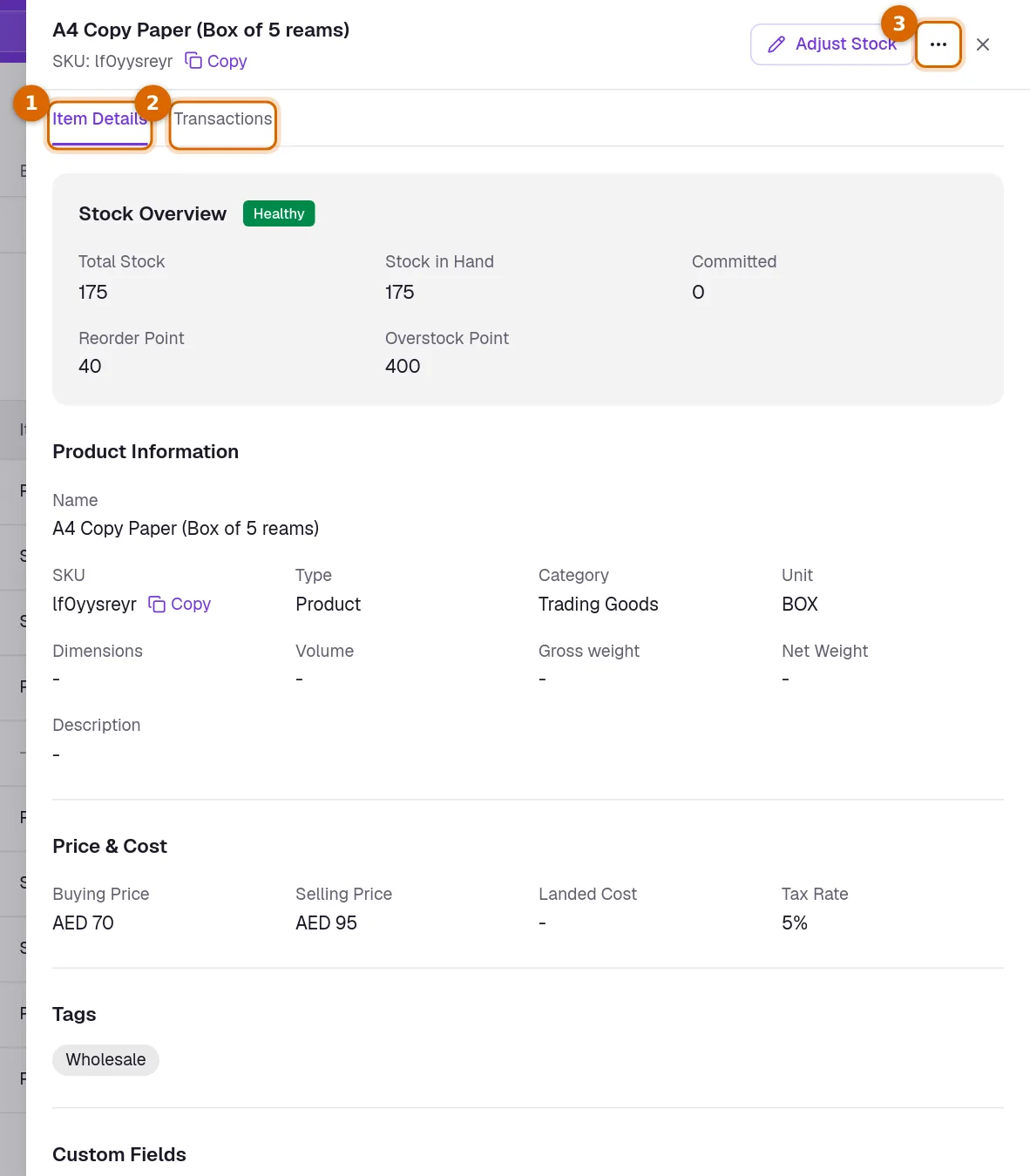
- 1Click Quick View on a row. A panel opens on Item Details: Stock Overview with the stock status, then Product Information, Price & Cost, Tags and Custom Fields.
- 2Transactions lists the item's stock movements.
- 3The ⋯ at the top, beside Adjust Stock, holds Edit Item, Detail View and Delete Item.
- Copy, beside the SKU, copies the code.
- Adjust Stock records stock coming in or going out. The article on inventory settings covers it step by step.
The item page
Detail View, in the More menu of a row, opens the item on a page of its own with two tabs — and Batches for an item tracked by batch (each batch with its dates and what it holds, in all and by warehouse; Transactions on a batch shows its own movements), and Serials for one tracked by serial number.
- Overview starts with Stock Summary: Total Stock, Stock in Hand, Net Committed Stock and Stock Value, which is the stock in hand multiplied by the Buying Price.
- Below it are Item Specifications, Pricing & Taxation, Physical Attributes and Accounting Ledgers. Edit on a card opens the item form.
- Transactions opens on the last 30 days. Transactions Summary adds up Stock In and Stock Out for the filters you set, and Transactions Graph draws them by day, week or month. Documents counts the documents behind those movements. Committed Stock is what open sales orders still have to send.
- The table under them lists each movement with its date, Stock In/Out, Base Quantity, prices and Reason. Download CSV saves it.
- Adjust Stock is at the top right. The arrow beside it holds Edit Item, Duplicate Item and Delete. Transfer Warehouse Stock moves some of the item from one warehouse to another, while warehouses are switched on.
Good to know. An item's first movement is its initial stock. If you cannot see it, the date filter is hiding it: the tab opens on the last 30 days.
Batches on documents
With Manage inventory on, a line of an item tracked by batch shows Select Batches under it, on every document that moves or checks stock.
- 1Click Select Batches. A panel lists the item's batches, the soonest to expire first, with what each holds. With warehouses on, it also shows what each holds in the line's warehouse.
- 2Type how much of the line comes from each batch. Together they must make the line's quantity.
- 3On a purchase, Create New Batch adds one with its name, code and dates. The purchase brings its stock in.
- 4Click Save. The line shows the batches it takes from.
- Once the document is saved, each batch's stock moves with the item's. Batches in documents, under Business Settings, Inventory, decides when a batch is required.
- Under Block Only, or with Strict Control on the item, a sale is refused when a batch it names holds less than it asks for.
- Turn on Show Batch Summary on the document's page to print a table of its batches under the lines.
- A batch that stock has moved in or out of cannot be removed from the item.
Units of measurement
With Enable unit of measurement (UOM) on in Business Settings › Inventory, an item can be bought and sold in other units than its Base Unit, while its stock stays counted in the base unit.
- 1On the item, choose the Base Unit — say KGS.
- 2Click Add Alternate Unit, choose the unit and how many base units one of it makes: 1 BAG = 25 KGS, 1 SAK = 50 KGS.
- 3Choose the Default Sales Unit and the Default Purchase Unit: the units a line starts in when the item is picked on a sale or a purchase.
- 4On a document, pick the item: the line starts in its default unit, priced per that unit (₹150 a KGS is ₹3,750 a BAG of 25). Change the line's unit and the rate is carried across; you can still type over it.
- 5Save. A sale of 3 BAG takes 75 KGS out of stock; a purchase of 2 SAK brings 100 KGS in.
- Standard units of one kind convert by themselves, with no alternate unit needed: 1 KGS = 1000 GMS, 1 MTR = 100 CMS, 1 LTR = 1000 MLT, 1 DOZ = 12 PCS.
- A line in a unit that cannot be converted to the item's base unit — a carton for an item kept in KGS, with no alternate unit for it — is refused when the document is saved. The line says so as you choose it.
- Each document keeps the conversion it was saved with: changing an item's alternate units later does not change the stock of documents already saved. An item's Transactions show both the document's own quantity and unit and the base quantity.
- Units of measurement cannot be turned off once enabled. Documents saved before it was on are left as they were.
Serial numbers on documents
With Manage inventory on, a line of an item tracked by serial number asks for one serial number for each unit, on every document that moves stock: a document type on Auto Update, and a credit or debit note line ticked to move stock.
- 1On an invoice, challan or other sale, click Select Serials under the line. A panel lists the item's serials in stock, in the line's warehouse while warehouses are on. Tick as many as the line's quantity.
- 2On a purchase, click Add Serial Numbers and type or paste the serials that arrived, with their Warranty Duration.
- 3On a credit note, Select Serials Returned lists the serials sold. On a credit note against an invoice, only serials that invoice sold are taken.
- 4For an item tracked by Batch + Serial No., a sale or a credit note picks serials only: the line's batches follow from the serials picked. A purchase chooses its batches first with Select Batches (or Create New Batch), then types the serials that arrived under each batch.
- 5Save the document. A sold serial leaves stock, a purchased one joins it, and a returned one comes back, with the stock.
- A serial already sold, returned to the vendor or adjusted out cannot be sold again, and one in stock cannot be bought again. The save says which serial and why.
- Turn on Show Serial Numbers in the document's settings to print them under the line. Serial Summary, on the document's page, lists them by item.
- Editing, cancelling or deleting the document puts its serials back as they were.
The Serials tab and returns from customers
- Available lists the serials in stock and the warehouse each is in. Sold lists each serial sold with the customer, the document, the day it was sold, its Warranty Period and its Warranty Date (the sale day plus the warranty).
- Return From Customer, on a sold serial or on several sold to one customer, takes them back. Reusable puts them back in stock in the warehouse you choose; Damaged and Scrapped keep them out of stock, on record as returned. A credit note is the way to take goods back with their money.
- Adjust Stock and Transfer Warehouse Stock move a serial-tracked item by serial: type the serials coming in, with their Warranty, or tick the ones going out or moving. For Batch + Serial No., choose the batch first: serials come into it, or leave from it.
- An outgoing adjustment for Sold marks its serials sold, with their warranty from that day; for Returned to vendor, returned; for Damaged, damaged; for any other reason, adjusted out.
- Serial numbers that stock moved in or out of stay on the item: they cannot be removed in Edit Item, and serial tracking cannot be turned off for it.
Count your stock
Stock Counts, a tab beside Warehouses, checks what is on your shelves against your books, and corrects the books in one step.
- 1Click New Stock Count. Choose the Count Date, the Warehouse counted (while warehouses are on) and, to count one shelf at a time, a Category. Click Start Count.
- 2The count sheet lists every item that keeps stock, with what your books hold now as Expected. A batch-tracked item has a line for each batch holding stock there.
- 3Type what you find in Counted. Variance shows the difference as you type. Click Save Counts as you go; a line left empty is not adjusted.
- 4Click Submit for Approval when counting is done. Someone who can edit inventory opens it and clicks Approve & Apply, or Reopen to count again.
- 5On approval, each line that differs becomes a stock adjustment dated the count date, with the count's number on it: Found in stock count for more, Short in stock count for less. They show in the item's Transactions.
- Expected is fixed when the count starts. Stock that documents move while you count is not on the sheet, so count and approve soon after starting.
- Variance Value is the difference at the item's average cost (its buying price while Manage inventory is off). Stock found is valued at that cost.
- Items tracked by serial number, or by batch and serial number, are not on the sheet: count them with Adjust Stock, which asks for each serial.
- Download CSV gives the sheet with every line's expected, counted and variance. Cancel Count ends a count with nothing adjusted.
- Anyone who can view inventory sees the counts; starting, counting and approving need Can edit inventory.
Edit, duplicate, delete and restore
- Edit, in the More menu, opens the same form with Update Item at the foot. Changing the Initial Stock moves the stock in hand by the difference, so adjustments made since are kept.
- Duplicate Item opens a new item filled in from this one, with "(Copy)" after the name. Batches and serial numbers are not copied.
- Delete asks you to confirm, then moves the item to the Deleted tab. Documents that already name it keep it. Restore, on a deleted row, brings it back.
- Deleting is not refused when documents use the item, because nothing is erased.
- A deleted item still holds its name: a new item cannot take the name of one in Deleted.
- Net Committed Stock is what open sales orders still have to send, Incoming Stock what open purchase orders still have to bring in, and Available Stock the stock in hand less what is committed. While warehouses are on, the item page's Warehouse Wise Stock shows them for each warehouse, and the Warehouses page for the warehouse chosen. Average Selling Price, Average Buying Price, Total Sold Quantity and Total Purchase Quantity are worked out from the item's movements. Total Stock is the same figure as Stock in Hand.
- What you can do here follows your role: Can create inventory, Can edit inventory and Can delete inventory.
Common questions
- Does saving an invoice reduce my stock?
- Yes, while Manage inventory is on and Inventory auto-update settings has Invoices on Auto Update. The stock moves a few seconds after the invoice is saved, for items with Manage Stock on. With Do Nothing, record what you sell with Adjust Stock.
- An item I never added is in my list. Where did it come from?
- From a document. When you save a document with a line that names something new, KyDec adds it to your items with the rate, tax and unit of that line and a SKU of its own. It starts with Manage Stock on and no stock, so it shows as Out of Stock until you edit it or adjust its stock.
- Can I upload my items from a spreadsheet?
- Yes. Under the arrow beside Add Item, Bulk Upload Inventory adds new items from a CSV file — with warehouse stock and points (`warehouse.WH0001.stock`) and alternate units where those are on — Bulk Update Inventory changes the details of items you already have (found by their SKU ID), and Bulk Adjust Inventory changes their stock — to a Final Stock, or by an Adjusted Quantity such as 5 or -5 — in a warehouse, a batch and with serial numbers where the item needs them. Bulk Transfer Stock moves stock between warehouses by their IDs, Bulk Upload Batches adds new batches with their opening stock, and Bulk Upload Package Items adds package items.
- Can I scan barcodes?
- Yes. In Add Item or Edit Item, click Add Barcode (beside Add Description and Add Tags) and type or scan the item's barcode. On a document line, scanning a barcode into the item search picks that item. Each barcode belongs to one item only, and the Barcode column can be shown on All Items. Bulk Upload and Bulk Update take a Barcode column too.
- Can the bulk files set an item's vendor?
- Yes, by the vendor's Unique Key (on the vendor's own record). Bulk Upload Inventory and Bulk Update Inventory read preferredVendorUniqueKey: the item's preferred vendor (an update keeps the item's other vendors after it). Bulk Upload Batches reads Vendor Unique Key: the vendor the batch came from. A key none of your vendors has is refused with the row.
- What is a package item, and how do I add one?
- A package is one item made of other items, sold as a set: a Starter Kit made of 2 Paper and 1 Pen. Under the arrow beside Add Item, choose Add Package Item, name it, and under Package Items pick each item with its Bundle Quantity. The items must already be in your inventory, and a package cannot hold another package. Its Buying Price and Selling Price fill in from the total of its items until you type your own.
- Does a package have its own stock?
- No. A package keeps no stock of its own. When a document that updates stock sells a package, KyDec takes each of its items out of stock instead: selling 3 kits of 2 Paper takes out 6 Paper. So you cannot use Adjust Stock on a package; adjust the items in it. An item that is part of a package cannot be deleted until you take it out of the package.
- Can a document show what is inside a package?
- Yes. Turn on Auto-expand package items in documents in Business Settings, on the Inventory tab. Picking a package on a line then adds a group named after the package with a line for each of its items. With it off, the package stays one line at its own price.
- Why can I not reuse the name of an item I deleted?
- A deleted item is kept in the Deleted tab and still holds its name. Open Deleted, click Restore on it and edit it, instead of adding it again.
Related guides
Inventory and units
Track stock from the documents that move it, choose the units you buy and sell in, and set the levels that raise a re-order or over-stock alert.
Stock reports
Stock value, stock status, party and all transactions, and unsold inventory: the reports that show what you hold and what moved.
Warehouses
Manage & track stock across multiple locations.
Batch Expiry Report
See how much of each batch-tracked item expires soon and how much already has, so you can sell, return or write off stock before it is lost.