
Help
Warehouses
Manage & track stock across multiple locations.
Where to find it:Products & InventoryWarehouses
What warehouses do
With Enable Multi Warehouses on, KyDec keeps each item's stock separately for every warehouse you add, as well as its total.
Every stock movement then happens in a warehouse: the Initial Stock of a new item, the opening stock of each batch, and every Adjust Stock.
Good to know. With Manage inventory on, a document set to Auto Update in Business Settings, Inventory, Inventory auto-update settings moves stock a few seconds after it is saved: a sale takes it out, a purchase brings it in. Each line moves stock in the warehouse chosen on it, or the primary warehouse when none is chosen.
Switch warehouses on
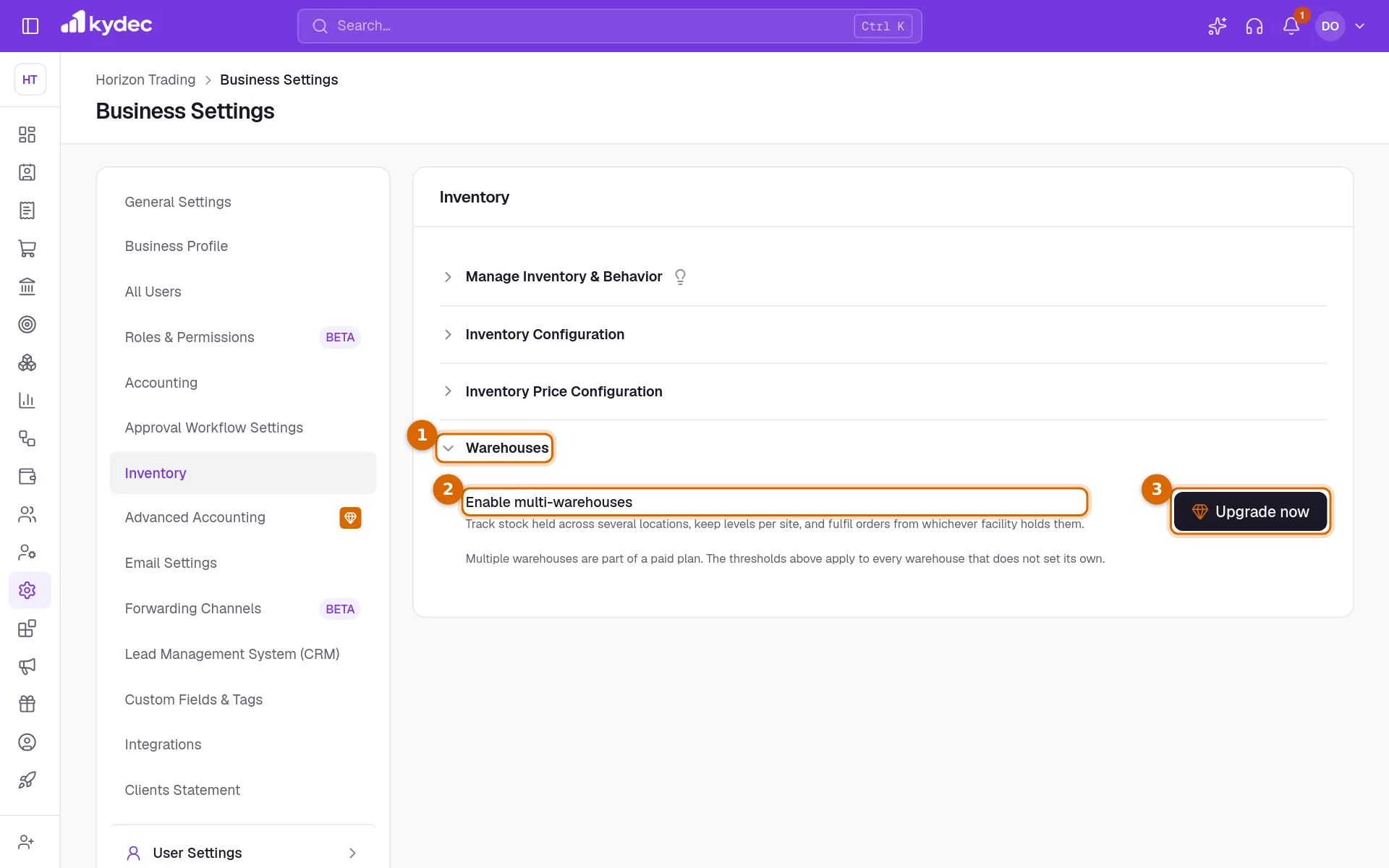
The setting is in Business Settings, on the Inventory tab, in the Warehouses section at the bottom.
- 1Click Warehouses to open the section.
- 2Enable Multi Warehouses is the setting.
- 3On the Basic plan the row shows Upgrade now in place of the switch. It starts the free trial if you still have one, or opens the upgrade.
- Manage inventory has to be on first. Until it is, the switch is greyed.
- Turning the switch on asks Are you sure you want to enable warehouses? Click Enable Warehouse to go ahead.
- Turning it off asks to confirm with Yes, Disable. Stock moved after that is kept without a warehouse. What each warehouse already holds stays recorded.
- Only a Super Admin can start the trial or upgrade. For anyone else the button is greyed.
Add a warehouse
- 1Click Add New Warehouse under the switch.
- 2Warehouse ID is filled in with the next free one, such as WH0001. You can change it, but no two warehouses can share one.
- 3Fill in Warehouse Name, Country, State / Province, City / Town, Postal Code / Zip Code and Street Address. All of them are required.
- 4Warehouse VAT, Email and Phone are optional.
- 5Click Save. Anything missing is listed under Please fill the following details.
- The table lists each warehouse's Name, Warehouse ID, Address, Contact, Status and Warehouse VAT. The columns button chooses the columns.
- More on a row holds Edit and Set Primary.
- The Primary warehouse is your default stock location. Stock added without naming a warehouse, such as from a bulk upload or a serial-tracked item, goes there.
- No two warehouses can have the same name, so they can be told apart in a list.
Where you choose a warehouse
- Add New Item: Initial Stock becomes a table of Warehouse Code and Opening Stock. Select more warehouses adds a row. The item's initial stock is the rows added up.
- Create New Batch: its Opening Stock is the same table.
- Adjust Stock: Warehouse is required, and each warehouse shows how much of the item it holds (Stock In Hand). With Strict Control on, stock cannot go below zero in the warehouse it leaves.
- A document's Shipped From: Select Warehouse copies that warehouse's name and address into the document. Changing the warehouse later does not change documents already made.
The Warehouses page
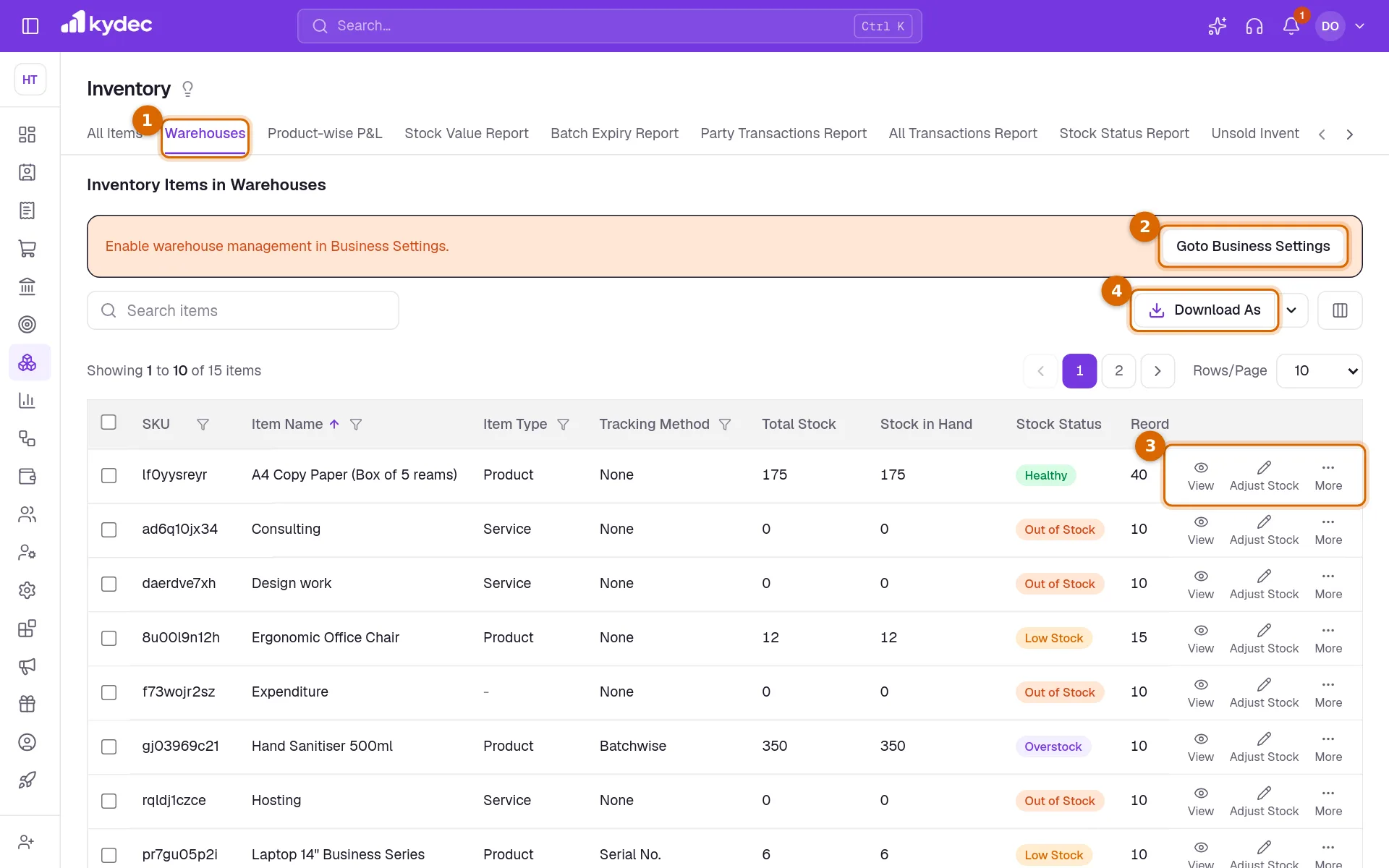
Open Products & Inventory in the sidebar and choose Warehouses.
- 1The Warehouses tab is selected. The other tabs are the rest of Products & Inventory.
- 2Until warehouses are switched on, a notice reads Enable warehouse management in Business Settings. Goto Business Settings beside it opens the Inventory tab of the settings.
- 3View on a row opens the item's quick view, and Adjust Stock records stock coming in or going out.
- 4Download As saves the list as a CSV file. The columns button beside it (Show/Hide Columns) chooses the columns.
- With warehouses on, Filters chooses a warehouse. It opens on your primary warehouse. The list shows the items that have stock movements in it, and Warehouse Stock is how much each holds there.
- With warehouses off, every item you keep stock for is listed, with its Total Stock.
- Stock in Hand is always the item's total across all warehouses.
- Search items finds an item by its name, SKU, category or HSN code.
- Opening the page needs a role with Can view inventory.
Where warehouses show up elsewhere
- The Transactions of an item and the All Transactions Report name the warehouse of each movement in their Warehouse column.
- The Stock Status Report has an Items and Warehouses choice. Warehouses lists each item once for every warehouse it holds stock in, judged against that warehouse's own reorder and overstock points where the item has them.
- Transfer Warehouse Stock, on an item's page and in the Warehouses list, moves stock from one warehouse to another; tick Generate Delivery Challan to make the challan that goes with it.
Common questions
- Why is the Enable Multi Warehouses switch greyed?
- Manage inventory, at the top of the same tab, is off. Switch it on first. On the Basic plan the row shows Upgrade now instead, because warehouses are part of a paid plan.
- Where did the stock I had before switching warehouses on go?
- It is still in each item's Stock in Hand, but in no warehouse. Edit the item and choose a warehouse for its Initial Stock to put its opening stock in one.
- How do I move stock from one warehouse to another?
- On the Warehouses page, open More on the item's row and choose Transfer Warehouse Stock; the same option is under the arrow beside Adjust Stock on the item's page. Choose Transfer From, Transfer To, the Date, the Transfer Quantity and a Reason, then click Confirm Transfer. You cannot move more than the source warehouse holds. The item's total stock stays the same, and the Transactions tab shows the stock going out of one warehouse and into the other. Tick Generate Delivery Challan to open a delivery challan for the move after you confirm: it is delivered by and to your own business, shipped from the one warehouse to the other, with the item, the quantity and your reason as its notes. Saving that challan does not move the stock a second time, and its number then shows on the two movements.
- Why is an item missing from the Warehouses page?
- With a warehouse chosen in Filters, only items with stock movements in that warehouse are listed. Otherwise its Manage Stock switch is off, or it has been deleted.
Related guides
Inventory and units
Track stock from the documents that move it, choose the units you buy and sell in, and set the levels that raise a re-order or over-stock alert.
Items
Your catalogue of products and services: add items with their prices, tax and units, see each one’s stock and transactions, and adjust stock.
Stock reports
Stock value, stock status, party and all transactions, and unsold inventory: the reports that show what you hold and what moved.
Plans and billing
Each business has its own plan. See yours, start the free trial, upgrade, and find out what is premium.