
Help
Stock reports
Stock value, stock status, party and all transactions, and unsold inventory: the reports that show what you hold and what moved.
Where to find it:Products & InventoryStock Value Report
Five reports, and the question each answers
Each report is a page under Products & Inventory in the sidebar, and a tab on every Products & Inventory page.
- Stock Value Report: what is the stock I hold worth?
- Stock Status Report: which items are running low, have run out or are overstocked?
- All Transactions Report: which stock movements were recorded, and when?
- Party Transactions Report: what did I sell to, or buy from, one client or vendor?
- Unsold Inventory Report: which stock has not sold for a long time?
Good to know. The stock in these reports comes from each item's Initial Stock, from Adjust Stock and from documents set to Auto Update. The value, status and unsold reports list only items with Manage Stock on.
Stock Value Report
- 1The Stock Value Report tab is selected. The other tabs are the rest of Products & Inventory.
- 2Hide Zero-stock Products is ticked to start. Untick it to include the items you hold none of.
- 3Summary has two figures. No. of items is how many items the report lists. Total Stock Value is each item's stock in hand at its buying price, added up in your business currency.
- 4Download CSV saves what the report is showing.
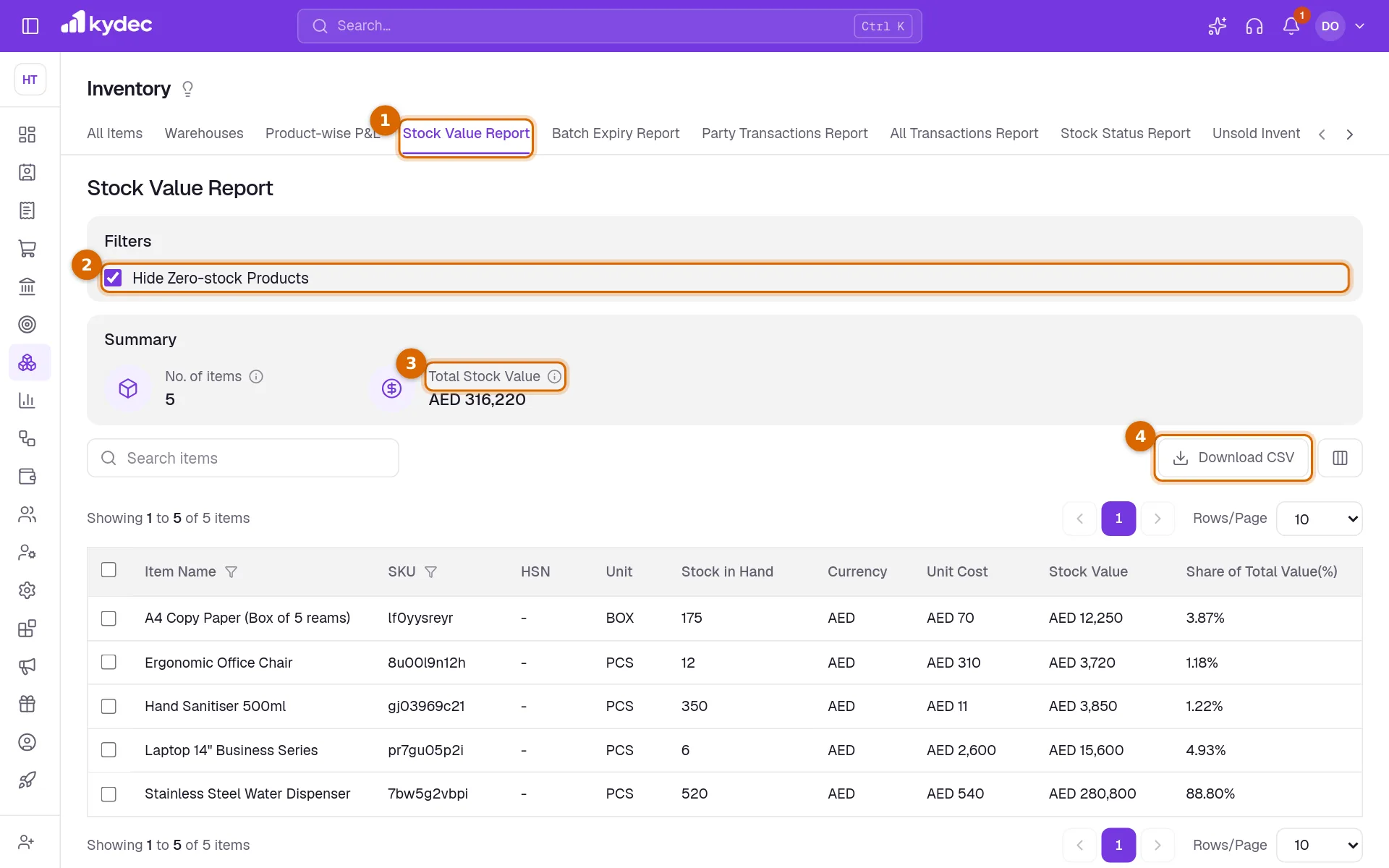
- Item Name, SKU, HSN and Unit come from the item. Stock in Hand is its stock now.
- Unit Cost is the Buying Price saved on the item, in the item's Currency. An item with no buying price is valued at zero.
- Stock Value is the stock in hand multiplied by the unit cost.
- Share of Total Value(%) is the item's part of the total.
- An item priced in another currency joins the total at today's exchange rate. If no rate is available it keeps its own value, stays out of the total and shows a dash for its share.
- Search items finds an item by its name or SKU.
Stock Status Report
- 1Items and Warehouses choose the layout. Warehouses adds a Warehouse column, which is empty for now.
- 2Under Filters, pick a Stock Status and click Apply to keep only the items at that status.
- 3Summary counts the items that want attention: Critical Stock SKUs, Low Stock SKUs, OverStocked SKUs and Out of Stock SKUs.
- 4Download CSV saves what the report is showing.
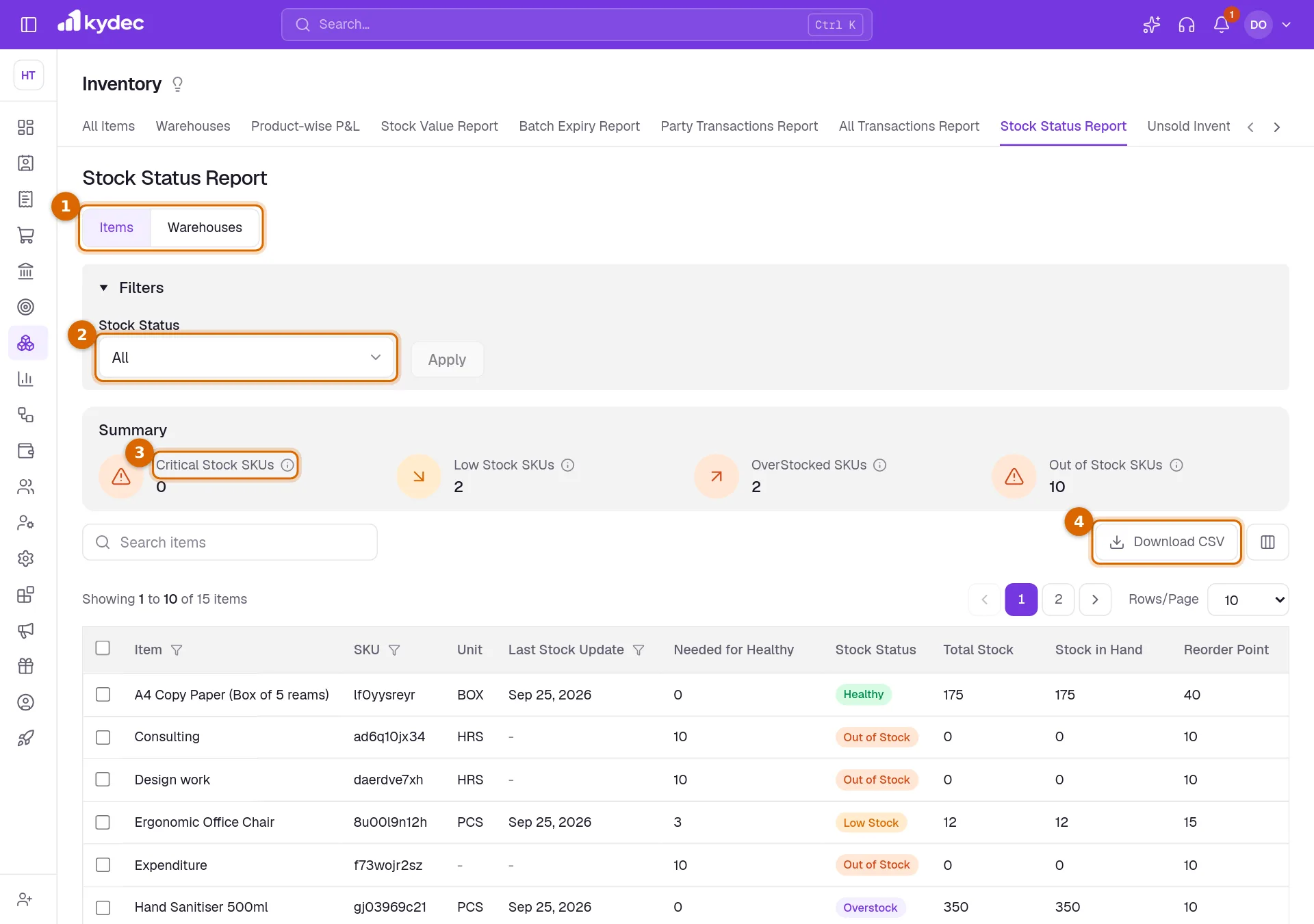
- An item is Out of Stock at zero; Critical below its reorder point; Low Stock below the Well Stock threshold — its reorder point plus 30% of the way to its overstock point; Well Stock from there up to its overstock point; and Overstock at its overstock point or more.
- Each item is counted once in the Summary, under the status it has. The counts cover all your stock-managed items, whatever the filter.
- Last Stock Update is the day the item's stock last changed.
- Needed for Healthy is how many more you need to reach Well Stock. It is 0 once you are there.
- Reorder Point and Overstock Point are the item's own levels, or the ones in Business Settings when the item has none. Total Stock and Stock in Hand are the same figure for now.
All Transactions Report
- 1Time period sets the dates. The report opens on the last 60 days.
- 2Click Apply filters. A new period counts only once you do.
- 3Search items finds a movement by its item, SKU, document number, or client or vendor.
- 4Download CSV saves what the report is showing.
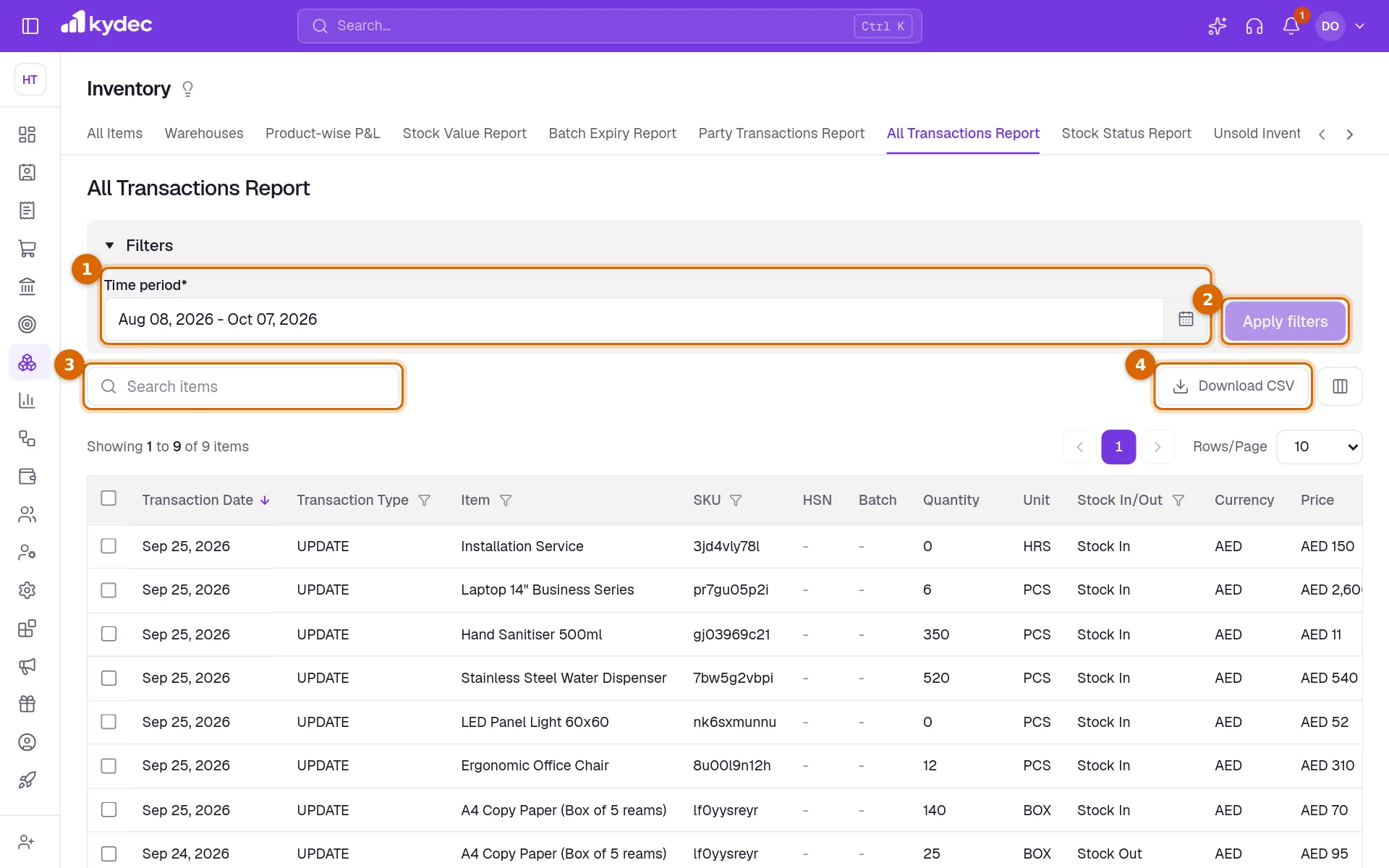
- Each line is one movement of one item: Transaction Date, Item, SKU, Quantity, Unit and Stock In/Out.
- Price is the buying price on a movement coming in and the selling price on one going out.
- Reason is the reason chosen in Adjust Stock, and Client/Vendor is the party named there.
- A line is an item's initial stock, a stock adjustment, or a document that moved stock. Document No. and Status show a dash on the first two.
- Batch names the batch a movement went in or out of, where one was chosen. Warehouse and Tax are the two columns the columns button can add.
Party Transactions Report
- 1Time Period sets the dates. It starts on the last 60 days.
- 2Client/Vendor chooses the party. One record can be a client, a vendor or both.
- 3Click Apply Filters. The table reads Apply filters to view report data until both are set and applied.
- 4Download CSV saves what the report is showing.
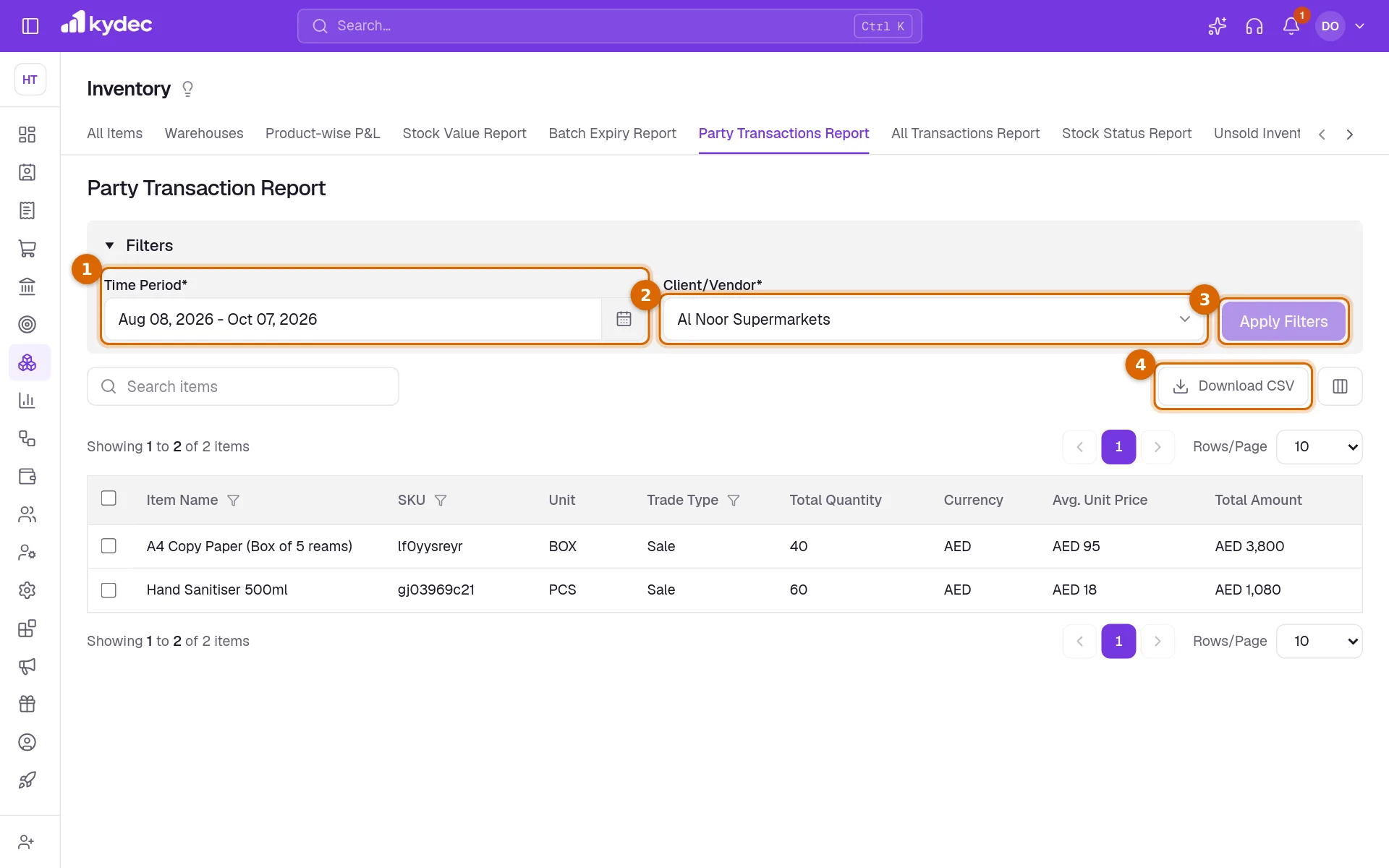
- There is one row for each item, unit, Trade Type and currency. Sale rows come from your invoices, and Purchase rows from your purchases and expenses.
- Total Quantity and Total Amount add up the lines in the period. The amount is before tax. Avg. Unit Price is the amount divided by the quantity.
- Drafts and cancelled documents are left out. A document counts by its own date.
- This report reads documents, not stock movements, so it shows what was sold and bought whether or not those documents moved stock. A line typed in by hand is included, with a dash for its SKU.
- You see the sales only if your role can view invoices, and the purchases only if it can view purchases.
- The list offers the first 200 clients and vendors by name.
Unsold Inventory Report
- Items unsold since (days) starts at 90. Enter a number from 1 to 180 and click Apply. View by gives a row for each item, or for each batch holding stock. With warehouses on, Warehouses counts only the stock in the ones you choose.
- The report lists stock-managed items you still hold that have gone that many days or more without a sale. A sale is an invoice with the item picked on it, drafts and cancelled invoices aside. An item that never sold is counted from the day it was added.
- Summary shows Total Unsold SKUs and Unsold Inventory Value, in your business currency.
- Days without Sales is the count, and the list opens with the longest first. Average Buying Price is the Buying Price saved on the item, and Stock Value is the stock in hand multiplied by it.
- Last Stock Out On, Last Stock Out Type and Last Stock Out To describe the later of the last invoice and the last outgoing stock adjustment.
- The columns button can add Last Stock In On, Last Stock In Type and Last Stock In From: the later of the last purchase and the last incoming adjustment. Viewed by batch, Batch Code and Batch Name name each batch, and a row for what no batch holds has none.
- On a row, View Item opens the item and Adjust Stock adjusts it there and then.
Download the reports, and who can open them
- Set the filters first: the file holds what the report is showing, on every page of it.
- Click Download CSV. A small window prepares the file; click Download when it says the file is ready.
- The columns button beside it (Show/Hide Columns) chooses which columns show in the table and in the file.
- Values are always worked out from the Buying Price saved on the item, not from the price on any purchase.
- Opening a report needs a role with Can access inventory reports. Downloading it needs Can download inventory reports.
Common questions
- Why is an item missing from the Stock Value Report?
- Either its Manage Stock switch is off, it has been deleted, or you hold none of it and Hide Zero-stock Products is ticked. Untick the box to list items with no stock.
- Why does the All Transactions Report not show my invoices?
- The report holds stock movements: initial stock, adjustments, transfers and documents set to Auto Update. A document type set to Do Nothing leaves no movement. To see what you sold to or bought from someone, use the Party Transactions Report.
- Why is the Unsold Inventory Report empty?
- Nothing you hold has gone 90 days without a sale. An item that has never sold is counted from the day it was added, so a new item list starts empty. Enter a smaller number of days and click Apply.
- Which price is my stock valued at?
- The Buying Price saved on the item. Change it on the item and the value follows. An item with no buying price is valued at zero.
Related guides
Items
Your catalogue of products and services: add items with their prices, tax and units, see each one’s stock and transactions, and adjust stock.
Inventory and units
Track stock from the documents that move it, choose the units you buy and sell in, and set the levels that raise a re-order or over-stock alert.
Batch Expiry Report
See how much of each batch-tracked item expires soon and how much already has, so you can sell, return or write off stock before it is lost.
Track Product Profitability
Track the average purchase price, average selling price, and gross profit margin for each of your products.