
Help
Vendors & Suppliers
Everyone you buy from. One record can be both a client and a vendor, with its purchases, payouts and statement.
Where to find it:Purchases & ExpensesVendors & Suppliers
Vendors, suppliers and clients
A vendor is a business or a person you buy from. You choose a vendor when you record a purchase, raise a purchase order or pay with a payout receipt, so this list is who you can buy from.
A vendor is the same kind of record as a client. A business you both buy from and sell to is kept once, with both roles, and its details are changed in one place.
- You add a vendor yourself with Add Vendor. A purchase, a purchase order and a payout receipt also let you add a new vendor on the spot, using the same form.
- A vendor lead becomes a vendor when it is approved on its workflow and you choose Add as Registered Vendor.
- A client you pay a refund to, out of a credit note, is listed here from then on.
- A bulk upload of purchases, expenses or purchase orders adds any vendor named in the file that you do not have yet.
Good to know. What you can do here follows the Vendor Management permissions of your role. Viewing, creating, editing and deleting vendors are each granted separately.
Find your way round the list
Open Purchases & Expenses, then Vendors & Suppliers.
- 1Add Vendor opens the form for a new vendor.
- 2The tabs split the list into All, Active and Archived. The tabs after them open the Vendor Report, Vendor Ageing Report and Vendor Outstanding Report.
- 3View Vendor opens the vendor in a panel beside the list. Edit and Archive sit next to it.
- 4More opens everything else you can do for that vendor.
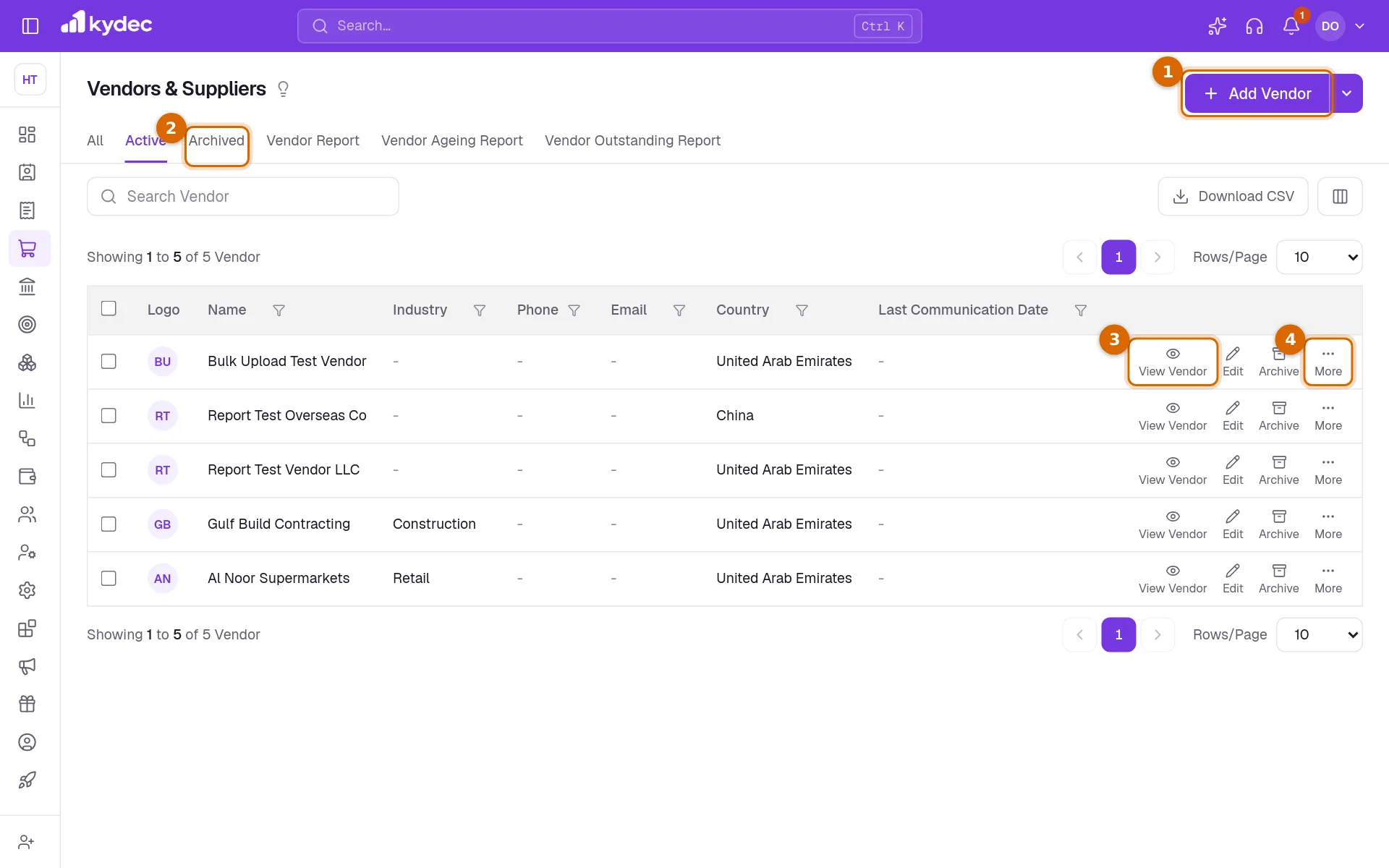
- Search, the filter under a column heading and the sort arrows all work together.
- Download CSV saves the list as a spreadsheet file. The columns button beside it chooses the columns; tax and address columns start hidden but are included in the file.
- Vendors share their custom fields with clients, so the fields you add for clients under Custom Fields & Tags in Business Settings appear here as columns too.
- Under the arrow beside Add Vendor, Upload Vendors adds many vendors from a CSV file. Request For Invoice and Request Quotation are shown as coming soon.
Add a vendor
Click Add Vendor. Only the first part, Basic Information, has to be filled in.
- 1Enter the Vendor's Name. As you type, KyDec lists records you already have that match; the next section explains what to do with them.
- 2Choose their country under Select Country. The name and the country are the only required details; Vendor Industry and City/Town are optional.
- 3Open Tax Information to record their tax registration. The fields follow the vendor's country, for example TRN for the UAE or GSTIN for India.
- 4Open Additional Details for their Email and Phone No.
- 5Click Save. You are taken back to the list, and the vendor can be chosen on a purchase, a purchase order or a payout receipt.
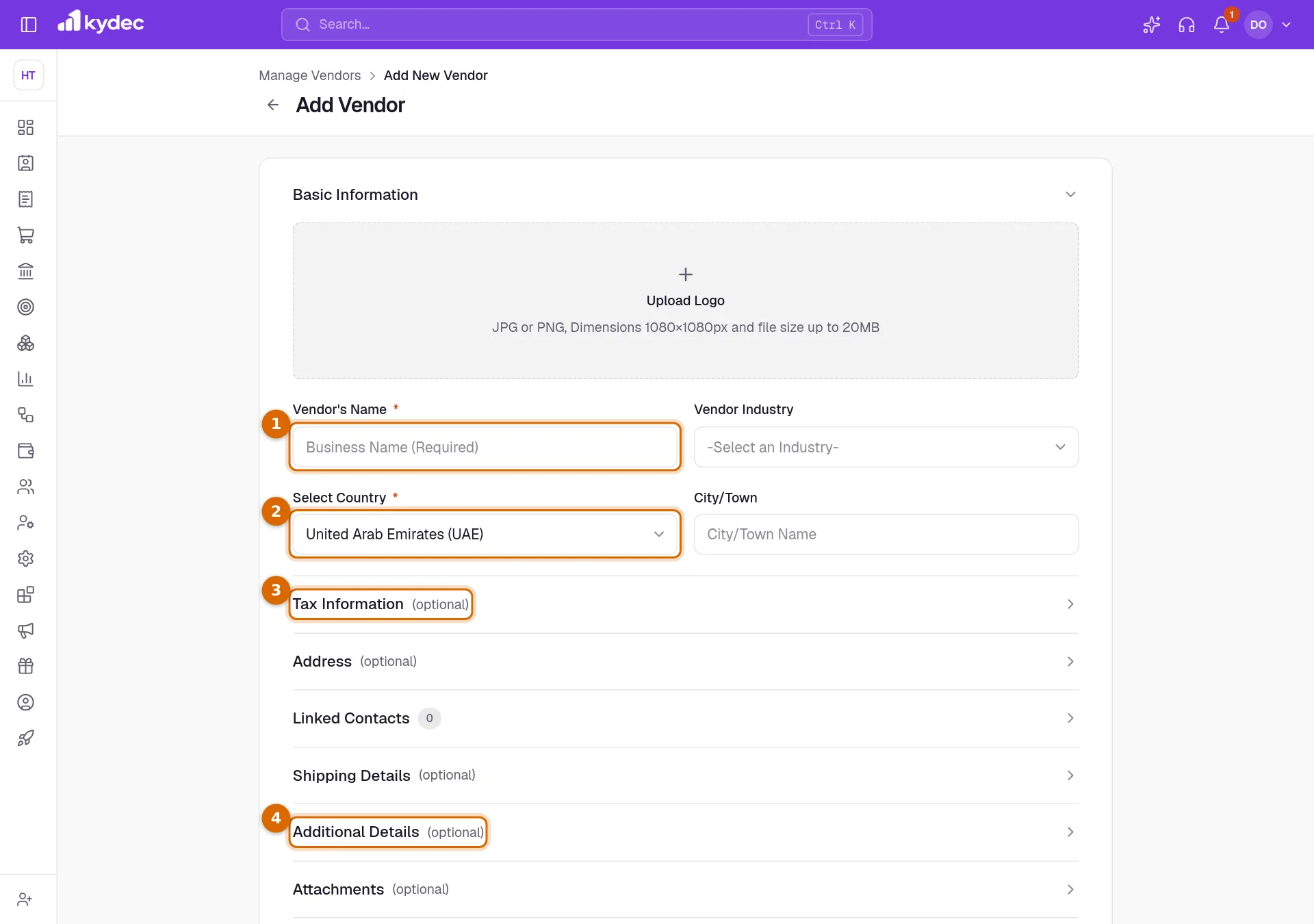
- The rest of the form is the same as the client form: Address, Linked Contacts, Shipping Details, Attachments and Account Details are all optional, and Upload Logo adds their logo.
- A vendor you add here is a vendor only. It is not listed under Clients & Prospects.
When the supplier is already on your books
As you type the Vendor's Name, KyDec lists matching records under Your existing clients/vendors, each marked Already added. Click one and KyDec says Vendor Already Exists and asks what you want to do.
- 1Edit Existing Vendor makes that record a vendor as well and opens it for editing. Choose it when the supplier is a business you already sell to: it stays one record, now with both roles.
- 2Create New closes the question and keeps the name in the form. Carry on and save, and you have a second, separate record that is a vendor only.
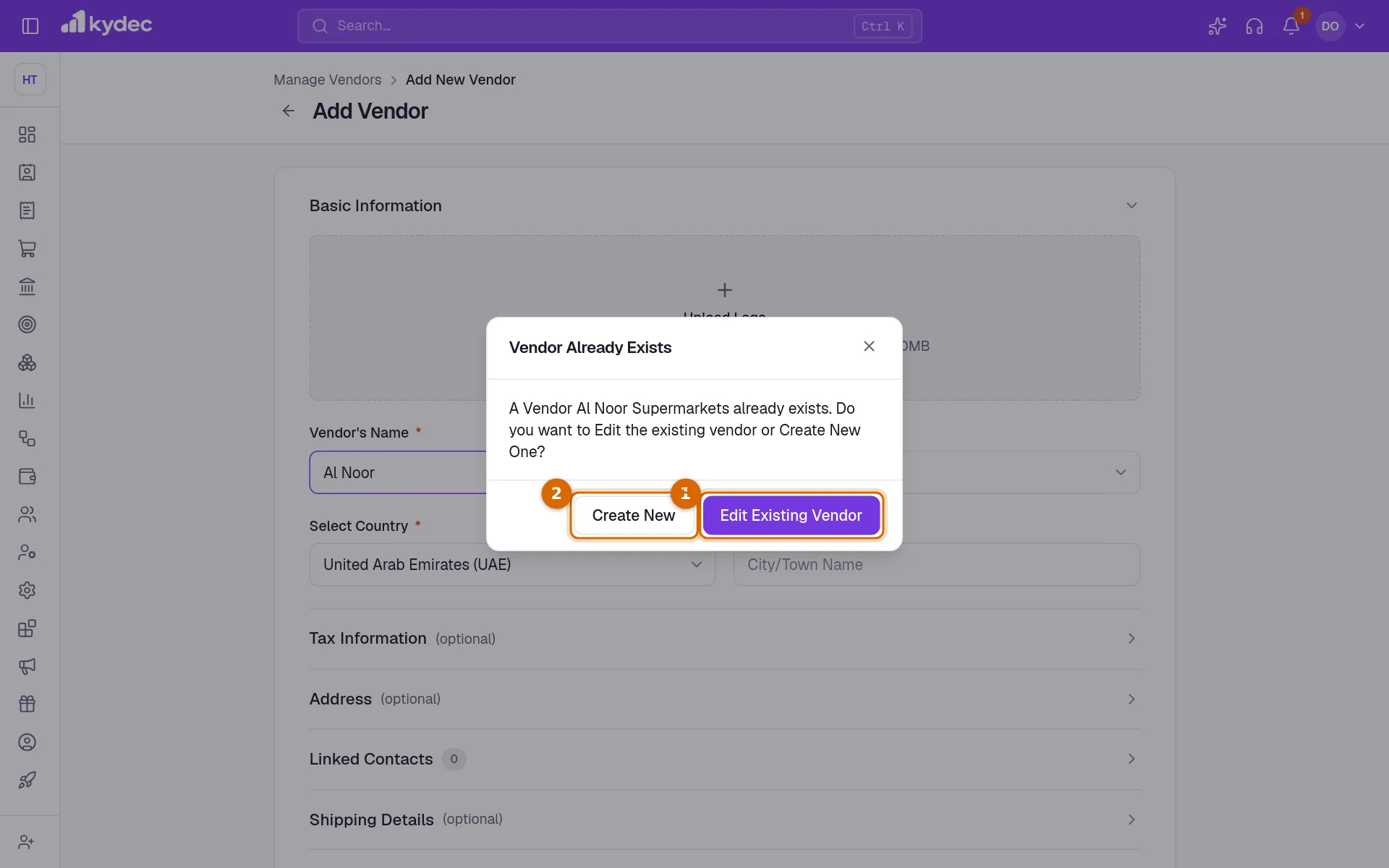
- With Edit Existing Vendor the record joins Vendors & Suppliers straight away, before you save anything on the form.
- KyDec asks only when you click a match. If you ignore the list and save, a new vendor is created, even when a client of the same name exists.
- The list may also show Suggested businesses: other businesses that use KyDec. Picking one fills in its name, and its industry, country and city where they are known.
Open a vendor and work with it
View Vendor on a row opens a panel beside the list. More holds everything else.
- 1Vendor Statement opens the vendor's statement, described in the next section.
- 2See All Invoices opens Purchases & Expenses showing only that vendor's purchases. See All Quotations opens their purchase orders.
- 3Create Expenditure starts a new purchase with the vendor already chosen. Create Purchase Order does the same for an order.
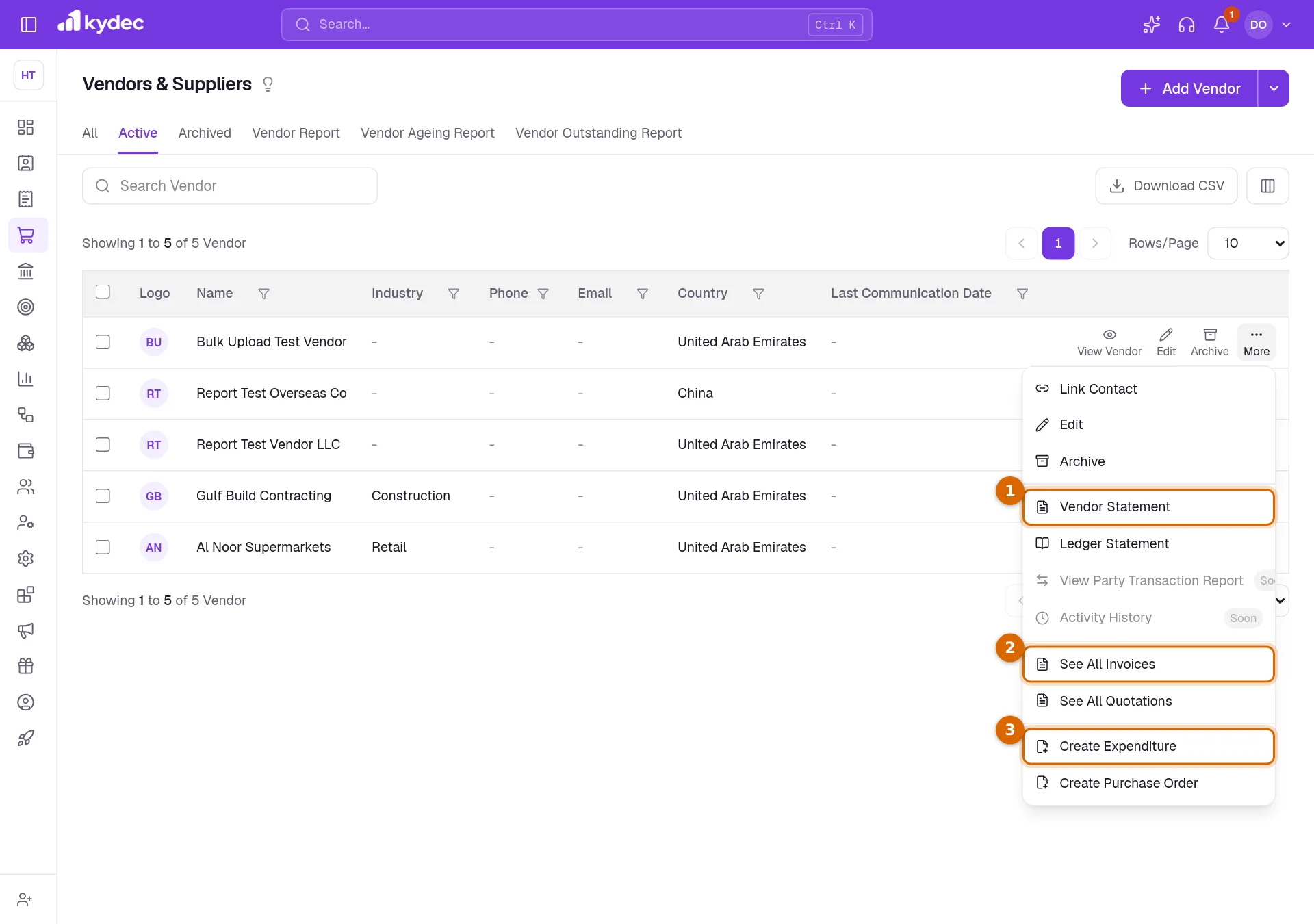
- The panel opens on Vendor Details: the address, tax information, custom fields, shipping details and attachments, each with a link to add what is missing. You can upload a file or add a shipping address straight from the panel.
- Beside the name, the labels Client and Vendor show which roles the record has.
- The Contacts tab lists the people linked to the vendor. Link Contact, under More, links another.
- The Purchases tab of the panel does not list the vendor's purchases yet. Use See All Invoices for those.
- View Statement, in the panel header, opens the statement, and the pencil beside it opens the full form.
- Ledger Statement is available when the vendor has a ledger. View Party Transaction Report and Activity History are shown as coming soon.
The vendor statement
The statement lists the documents between you and one vendor with a running balance, newest first. Open it from More, Vendor Statement, or from View Statement in the vendor's panel.
- A purchase is entered under Credit(+) and a payout to the vendor under Debit(-). Running Balance reads Cr while you owe the vendor.
- Total Balance, at the foot, is marked (Adv.) while the balance is on the credit side, which for a vendor means you still owe them, and (Due) while it is on the debit side.
- If the same record is also a client, its invoices, payment receipts and credit notes appear in the same statement.
- A remark that names a document is a link to it.
- Download Statement saves the rows as a CSV file, and the columns button chooses which columns show.
- View Ledger Statement is shown when the vendor has a ledger. Unpaid Expenditures is shown as coming soon.
Good to know. The ⋯ button opens Statement Configurations, which chooses the kinds of document a statement counts. It is one setting for the whole business, shared with client statements, so changing it here changes every statement.
Archive, remove and delete
- 1Archive moves a vendor to the Archived tab. Its purchases, payments and history are kept.
- 2On that tab, Restore brings it back.
- 3Remove as Vendor, at the foot of More, takes a record off this list. It is offered only for a record that is also a client, and the client is left exactly as it was.
- Archiving here sets aside the vendor side only. A record that is also a client stays where it was under Clients & Prospects, and archiving a client there does not archive it here.
- Archiving does not take a vendor out of the vendor list on a new purchase or purchase order. It can still be chosen there.
- To make a removed record a vendor again, click Add Vendor, type its name, click the match and choose Edit Existing Vendor.
Good to know. Delete is shown on the Archived tab, but KyDec deletes a record only when it has also been archived under Clients & Prospects and nothing refers to it: no contacts, ledger, documents, payments or leads. A record that is only a vendor cannot be deleted at present, so leave it archived.
Common questions
- Can the same business be a client and a vendor?
- Yes, and it stays one record. Click Add Vendor, type the name, click the match under Your existing clients/vendors and choose Edit Existing Vendor.
- Why has one of my clients appeared in the vendor list?
- Most likely because you paid them a refund out of a credit note: KyDec lists anyone you pay out to under Vendors & Suppliers. If you do not want them there, use Remove as Vendor under More. They stay a client.
- Why can I not delete a vendor?
- Deleting needs the record to be archived under Clients & Prospects as well, with nothing referring to it, and a record that is only a vendor cannot be archived there. Leave it on the Archived tab, where it is out of the way and its history is kept.
- Can I upload many vendors at once?
- Yes. Choose Upload Vendors under the arrow beside Add Vendor, download the sample file, fill one vendor to a row and upload it. Vendors named in a bulk upload of purchases, expenses or purchase orders are also added as part of that upload.
Related guides
Clients & Prospects
Every business you sell to, and the ones you hope to. A prospect becomes a client the moment you invoice it; archiving keeps old ones out of the way without losing their history.
Manage Vendor Leads
Add and manage vendor leads for seamless vendor onboarding.
Purchases and Expenses
Record, track, manage, and analyze all your purchases and expenses in one place.
Payout Receipts
Record a full or partial refund, automatically update the Credit balance, create a Refund Receipt, and keep your books updated.