
Help
Day Book and Cash Flow
Every voucher entry day by day, the cash that came in and went out, and all your ledgers in one master report.
Where to find it:AccountingDay Book
Three reports of what moved
The Accounting menu opens once Advanced Accounting is switched on in Business Settings, which is part of a paid plan. Until then each of these pages explains what it is for and shows an Enable Advanced Accounting button that takes you to the setting.
- Day Book lists every debit and credit recorded on one day, across all your accounts.
- Cash Flow Statement shows where your cash came from and where it went over a period.
- All Ledgers Master Report prints the statement of every account, one after another, for the dates you choose. A ledger is another word for an account.
Good to know. Opening any of the three needs a role with View financial statements.
Read the Day Book
Open Accounting in the sidebar and choose Day Book. It opens on today, and the heading reads DayBook followed by the date.
- 1Click the date to pick another day. The lines of that day load at once.
- 2Download CSV saves the day's lines as a file for a spreadsheet.
- 3The columns button beside it (Show/Hide Columns) chooses which columns show in the table and in the file. Currency is hidden until you switch it on.
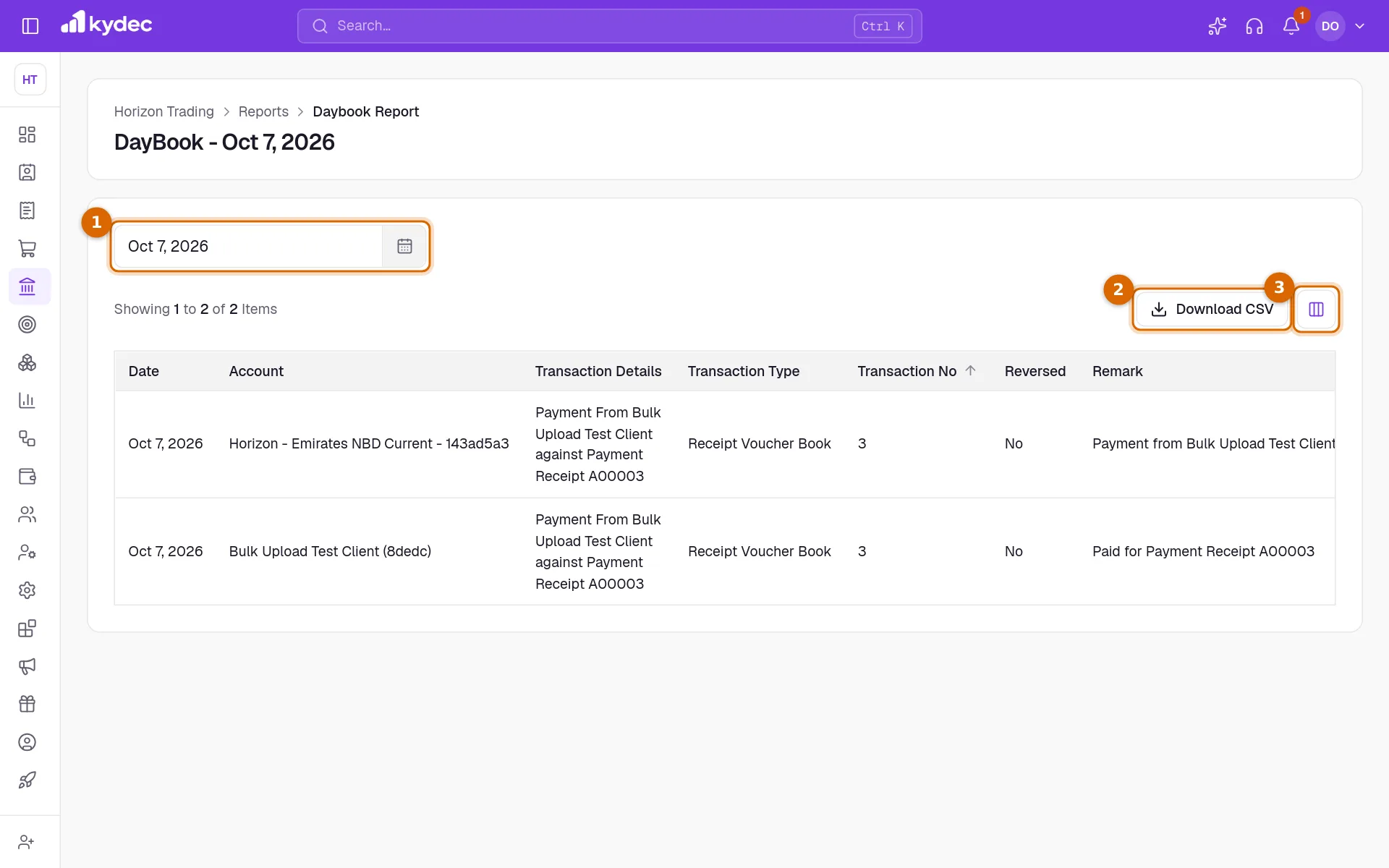
- Each debit and each credit is a line of its own, so one entry shows as two lines or more.
- Account is the account the line was posted to. Transaction Details is the note on the entry and Remark is the remark on the line.
- Transaction Type is the voucher book the entry is in, and Transaction No is its number in that book.
- Reversed reads Yes on an entry that was reversed and on the entry that reversed it. Those lines are greyed.
- Only one of Debit Amount and Credit Amount is filled on a line. Amount always is.
- Click Transaction No, Debit Amount, Credit Amount or Amount to sort by it.
Good to know. An entry is listed on the date written on it, not on the day it was typed in. A day with no entries shows No Data.
Read the Cash Flow Statement
Open Accounting and choose Cash Flow Statement. It opens on the whole of the current financial year.
- 1Select Financial Year chooses the year. The dates beside it reset to the whole of that year.
- 2Select Dates narrows the period. The calendar also offers This Financial Year, Previous Financial Year, Current Quarter, Previous Quarter, This month and Previous month.
- 3Click Apply. The year and the dates count only once you do.
- 4Download PDF opens your browser's print window, where you choose to save as a PDF.
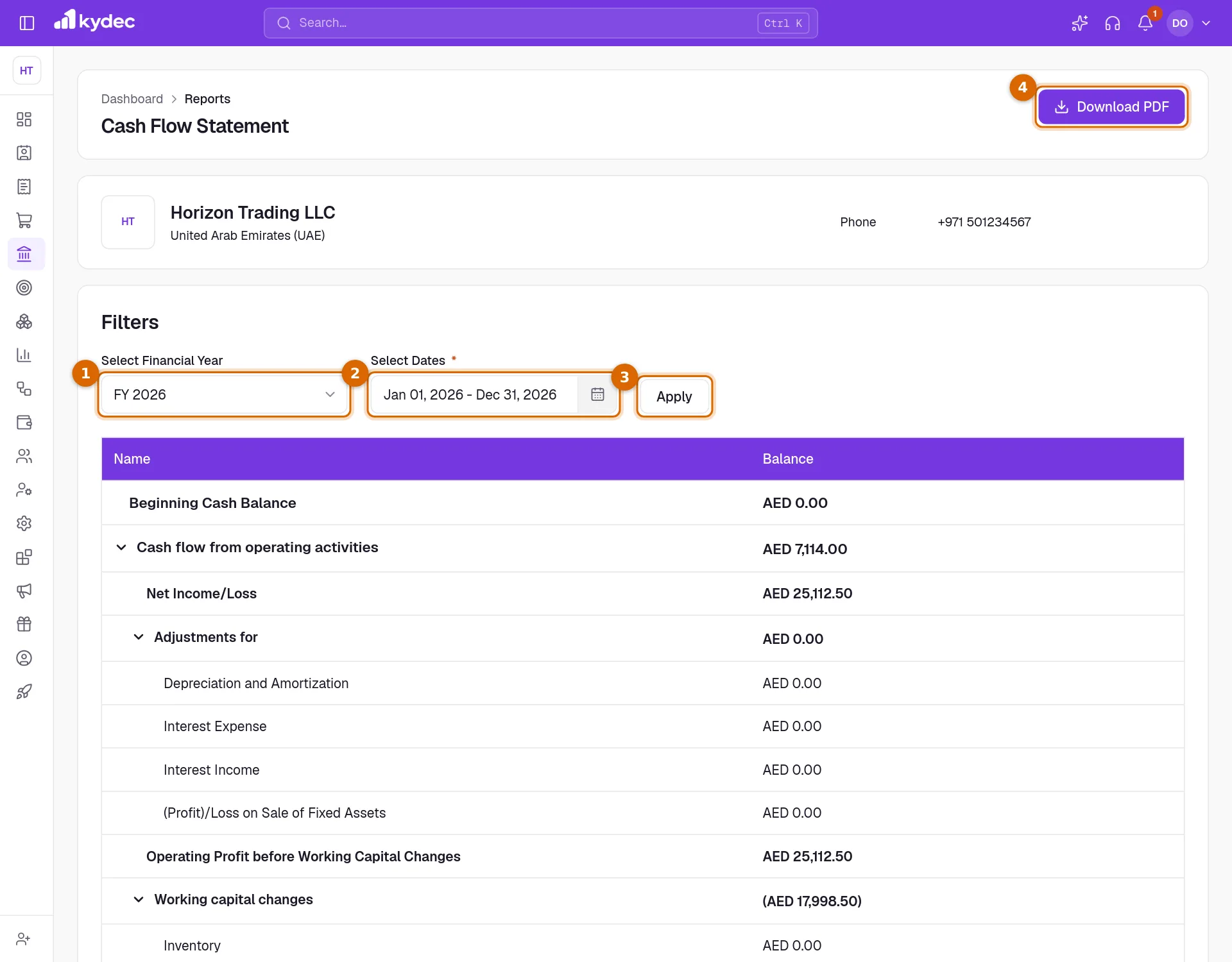
- Beginning Cash Balance is what your cash and bank accounts held at the start of the dates.
- Cash flow from operating activities starts from Net Income/Loss, adds back depreciation, moves interest and dividends to the two sections below, and adds the change in stock, receivables, payables, tax and provisions. It ends at Cash Generated from Operations.
- Cash flow from investing activities is what you spent on, and received from, fixed assets and investments, with interest and dividends received.
- Cash flow from financing activities is capital put in, loans taken and repaid, and interest and dividends paid.
- Net Increase / (Decrease) in Cash and Cash Equivalents is the three added together. Cash and Cash Equivalents at the End of the Period is the opening cash plus that change.
- The three activity rows start closed. Click the arrow beside one to see its lines. Cash going out is shown in brackets.
Good to know. Accounts are placed on a line by the account group they are filed under. Cash means the accounts in the Bank Accounts, Cash In Hand and Cash Others groups. (Profit)/Loss on Sale of Fixed Assets always shows zero for now.
Read the All Ledgers Master Report
Open Accounting and choose All Ledgers Master Report. It opens on the current financial year.
- 1Transactions Date Range sets the dates, up to five years. Select Financial Year beside it fills them with a whole year.
- 2Type, Account Group and Category narrow the report to some of your accounts.
- 3Hide Zero-Entry Accounts leaves out accounts with no entries in the dates. Show Opening & Current Balances shows or hides the two balances above each account.
- 4Click Apply Filters. Reset Filters goes back to the current year with nothing narrowed.
- 5Download PDF asks for the whole report as a PDF.
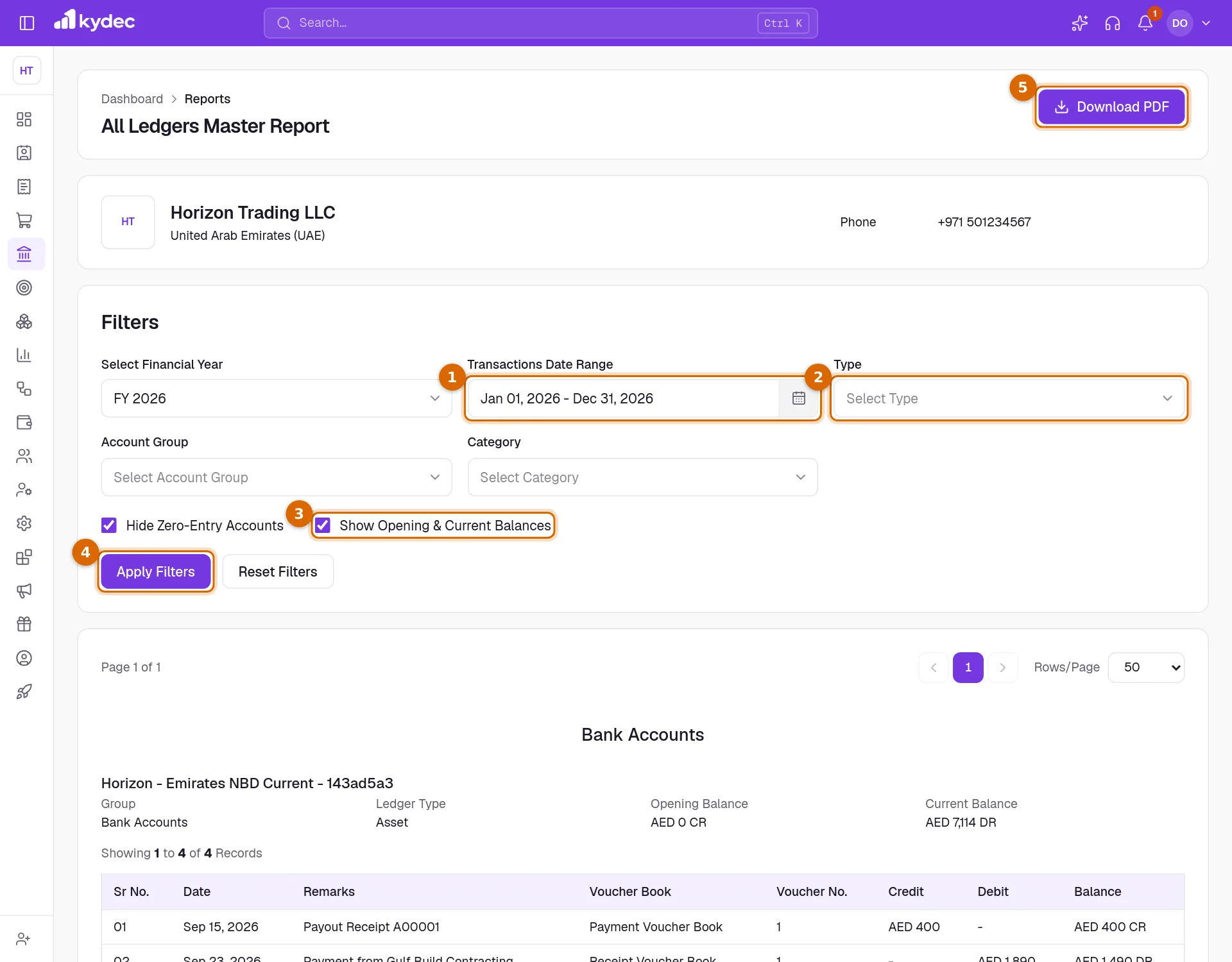
- Accounts are listed under the heading of their account group. Each has its name, Group, Ledger Type, Opening Balance and Current Balance, then its entries.
- The entry columns are Sr No., Date, Remarks, Voucher Book, Voucher No., Credit, Debit and Balance: the running balance after each line, marked DR or CR.
- Click the name of an account to open its own statement.
- Pages are counted in entry lines, 50 to a page to start with, so a long account can carry on to the next page.
Good to know. The PDF is prepared in the background for the filters you last applied. KyDec sends you a notification with Download Now when it is ready.
Rules worth knowing
- All three read the voucher entries in your books, the same ones your account statements show. A document counts once its type is synced under Sync Documents in Business Settings.
- The Day Book includes reversed entries and marks them.
- The Day Book shows each line in the currency of its entry. The other two reports are in your business currency.
- The Day Book downloads as a CSV file. The Cash Flow Statement and the All Ledgers Master Report download as a PDF only.
Common questions
- Why is the Day Book empty?
- It shows one day at a time and opens on today. Click the date and pick the day your entries are dated. An entry appears on the date written on it, not on the day you recorded it.
- The cash at the end does not match my bank statement. Why?
- The statement adds together every account in the Bank Accounts, Cash In Hand and Cash Others groups, as your books have them at the end of the dates you chose. Compare it with those accounts in Chart of Accounts, and use bank reconciliation to match a single bank account with the bank's own figures.
- I clicked Download PDF on the All Ledgers Master Report and nothing was saved. Where is it?
- That PDF is made in the background, because the report can be long. You get a notification with Download Now when it is ready. If you already have downloads being prepared, wait for them to finish before asking again.
- Can I download the Cash Flow Statement as a spreadsheet?
- No. Download PDF is the only download on that page.
Related guides
Trial Balance and Profit & Loss
Check that your books balance, and see income against expenses for a period in the Profit & Loss and the Income Statement.
Balance Sheet
What the business owns and owes on a date, with an earlier date beside it and the entries behind every figure.
Voucher Books
Group your voucher entries into books by type, and see how many entries each book holds in a financial year.
Accounts (Ledgers)
Create accounts, view ledger entries, and track all your financial transactions in one place.